Deductions Transaction Codes
To Create a Deductible or Deduction Transaction Code:
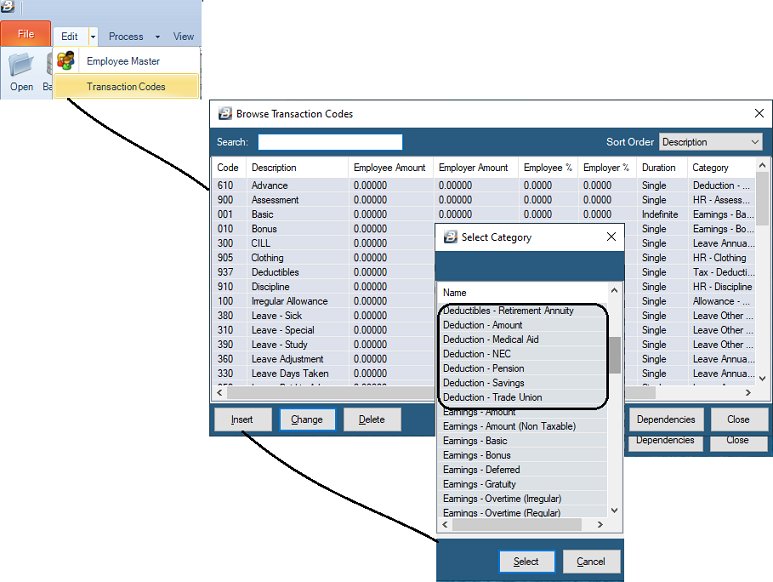
- Go to the 'Edit', then 'Transaction Codes' menu options
- From the table of existing Transaction Codes, press Insert
- A list of Transaction Categories are listed
- Notice that there is one 'Deductible' and 5 different types of 'Deduction' Transaction Codes:
Deduction - Amount
Use the 'Deduction - Amount' Transaction Category to setup a Transaction Code to process deductions from pay (e.g., deductions made through the payroll for third parties such as Credit Stores). Note: If the deduction is tax-deductible (e.g., professional membership contributions), it may be better to use the Tax Deductibles Transaction Code. You can also use this category to record the accumulation or repayment of a balance, as may be required for a savings scheme.

To create a 'Deduction - Amount' Transaction Code
- Go to the 'Edit', 'Transaction Codes' menu options.
- Click 'Insert' and select the Transaction Category 'Deduction - Amount'.
- Accept/Change the default 'Code'. This is a unique identifier designed to group similar types of transactions together.
- Enter an appropriate 'Description'.
- 'Contribution is': select whether the Amount being processed is a Percentage or an amount.
- If amounts processed are to accumulate a balance or reduce from a set opening balance, select either 'Reduce Balances' or 'Add Balances'.

- Enter the 'Employee Amount' and 'Employer Amount' if the Contribution has been set to 'Amount'. If the amount varies, leave blank and place a tick against 'Manual Edit' to allow entry during processing.
- Enter the 'Percentage' for the Employee and Employer if the Contribution has been set to 'Percentage'.
- Select the 'General Ledger' Codes to be entered onto journal reports and exports.
- Select 'Base On' if the amount is a percentage of the rate of pay for the Grade, Internal Grade, or Employee Master Rate.
- Set the 'Duration' — whether the transaction is to come through for a 'Single', 'Multiple', or 'Indefinite' number of periods.
- Set the 'P6 Field' for year-end ITF16 export. (If the transaction is not tax-deductible, keep this blank).
- Set the 'Default Currency' that this transaction code will be paid in.
- Click 'Ok' to save the new Transaction Code.
- Dependencies: This Transaction Code can be based on a percentage, amount, or number of units stated in one or more dependent Transaction Codes.
Deduction - Medical Aid
Use the 'Deduction - Medical Aid' Transaction Category to process Medical Aid Contributions made by both the employee and the employer. The employee will automatically receive a medical tax credit for the amounts deducted.
To create a 'Deduction - Medical Aid' Transaction Code
View written instructions
- Go to the 'Edit', 'Transaction Codes' menu options.
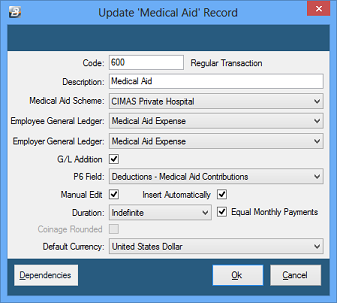
- Click 'Insert' and select the Transaction Category 'Deduction - Medical Aid'.
- Accept/Change the default 'Code'.
- Enter an appropriate 'Description'.
- Select the 'Medical Aid Scheme' that has been setup under the 'Medical Aid Schemes' menu option.
- Select the 'General Ledger' Code for both Employee and Employer contributions.
- Tick 'G/L Addition' if you want the Employee and Employer contributions added together to make one journal entry.
- Set the 'P6 Field' for year-end ITF16 export.
- Tick 'Insert Automatically' to have the Medical Aid code included on new employees' payslips by default.
- Set the 'Duration' (Single, Multiple, or Indefinite).
- Select whether on a weekly payroll the monthly contribution should be split over the number of weeks in the month (See Equal Monthly Payments).
- Set the 'Default Currency'.
- Click 'Ok' to save the new Transaction Code.
Deduction - NEC
Use the 'Deduction - NEC' Transaction Category to setup a Code to process NEC contributions.
To create a 'Deduction - NEC' Transaction Code
View written instructions
- Go to the 'Edit', 'Transaction Codes' menu options.
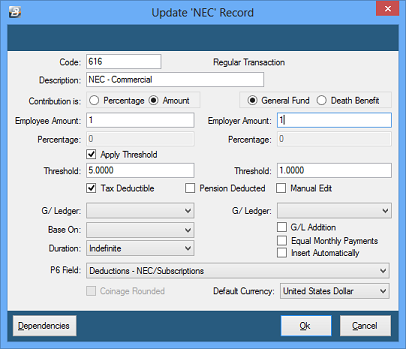
- Click 'Insert' and select the Transaction Category 'Deduction - NEC'.
- Accept/Change the default 'Code'.
- Enter an appropriate 'Description'.
- Select whether the NEC contribution will be a Percentage of Basic or a set Amount.
- Select whether the contribution is for the NEC General Fund or the NEC Death Benefit Fund (Set up separate codes for each).
- Apply Threshold: A threshold can be applied to limit the maximum contributions when setup as a percentage.
- Pension Deducted: Tick if the contribution is based on Basic pay net of pension contributions.
- Enter the 'Employee Amount' and 'Employer Amount'. If varying, leave blank and tick 'Manual Edit'.
- Select the 'General Ledger' Code.
- Set the 'Duration'.
- Tick 'Insert Automatically' to include automatically for new employees.
- Set the 'P6 Field'.
- Set the 'Default Currency'.
- Click 'Ok' to save the new Transaction Code.
Deduction - Pension (including NSSA)
Use the 'Deduction - Pension' Transaction Category to set up codes for pension deductions (including NSSA). Pension contributions can be calculated as a percentage (of Basic, NEC Grade, or Internal Grade rate) or as a fixed amount. It automatically takes into account the pension tax-free deduction amount.
To create a 'Deduction - Pension' Transaction Code
View written instructions
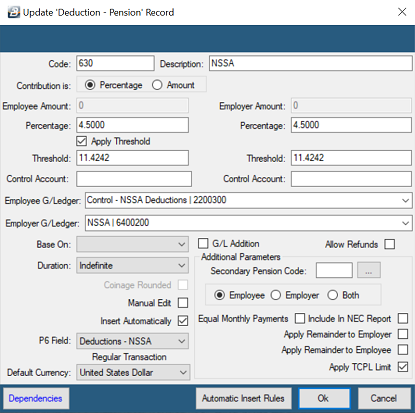
- Go to the 'Edit', 'Transaction Codes' menu options.
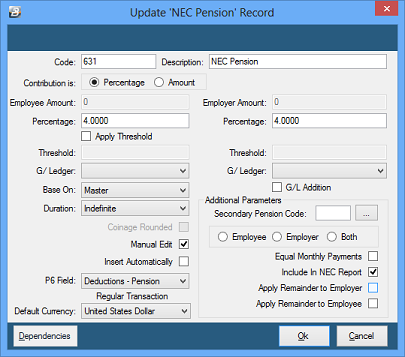
- Click 'Insert' and select the Transaction Category 'Deduction - Pension'.
- Accept/Change the default 'Code'.
- Enter an appropriate 'Description'.
- Select whether the contribution will be a percentage of basic or an amount entered.
- Enter the 'Percentage' or specific 'Employee Amount' (or tick 'Manual Edit').
- Apply Threshold: A threshold can be applied to limit the maximum contributions of employers and employees (Essential for NSSA setups).
- Select the 'General Ledger' Code.
- 'Base On': Select whether the percentage should be based on Basic pay, Internal Grade, or Grade Rate.
- Tick 'G/L Addition' if you want the Employee and Employer contributions combined in the journal.
- Set the 'Duration' (Single, Multiple, or Indefinite).
- Tick 'Insert Automatically'. (For NSSA, use rules to restrict to Permanent employees only).
- Set the 'P6 Field' for year-end ITF16 export.
- Set the 'Default Currency'.
- Secondary Code: Use this if the standard pension contribution is reduced by the amount contributed to another scheme (like NSSA).
- Click 'Ok' to save the new Transaction Code.
Deduction - Savings
Use the 'Deduction - Savings' Transaction Category to set up a code to process Savings deductions. Savings contributions can be calculated as a percentage or as an amount for the employee and employer. The amount deducted from the employee's net pay is added to the savings balance which is recorded in the Employee Master Record of the individual. This amount is available for the employee to draw down upon in accordance with the rules that have been set up.
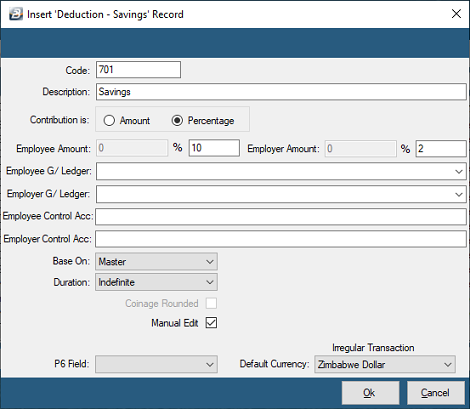
To create a 'Deduction - Savings' Transaction Code
- Go to the 'Edit', 'Transaction Codes' menu options.
- Click 'Insert' and select the Transaction Category 'Deduction - Savings'.
- Accept/Change the default 'Code'. This is a unique identifier designed to group similar types of transactions together.
- Enter an appropriate 'Description'.
- 'Contribution is': select whether the savings amount being processed is a Percentage or an Amount.
- Enter the 'Employee Amount' and 'Employer Amount'. If the amount varies, leave blank and place a tick against 'Manual Edit' to allow entry during processing.
- Select the 'General Ledger' Codes to be entered onto journal reports and exports.
- Select 'Base On' if the amount is a percentage of the rate of pay for the Grade, Internal Grade, or Employee Master Rate.
- Set the 'Duration' — whether the transaction is to come through for a 'Single', 'Multiple', or 'Indefinite' number of periods.
- Set the 'P6 Field' for year-end ITF16 export. (Normally blank for savings unless specific tax rules apply).
- Set the 'Default Currency' that this transaction code will be processed in.
- Click 'Ok' to save the new Transaction Code.
Deduction - Trade Union
Use the 'Deduction - Trade Union' Transaction Category to setup a Transaction Code to process Trade Union contributions.
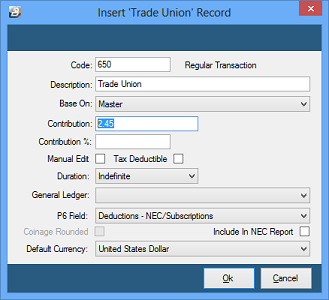
To create a 'Deduction - Trade Union' Transaction Code
- Go to the 'Edit', 'Transaction Codes' menu options.
- Click 'Insert' and select the Transaction Category 'Deduction - Trade Union'.
- Accept/Change the default 'Code'.
- Enter an appropriate 'Description'.
- 'Contribution is': select whether the contribution is a Percentage or an Amount.
- Enter the 'Employee Amount' and 'Employer Amount' (or set the 'Percentage'). If the amount varies, leave blank and tick 'Manual Edit'.
- Select the 'General Ledger' Codes for the Employee and Employer contributions.
- Set the 'Duration' — usually 'Indefinite' for standing union subscriptions.
- Tick 'Insert Automatically' if you want this included on new employees' payslips by default.
- Set the 'P6 Field' for year-end ITF16 export.
- Set the 'Default Currency' that this transaction code will be paid in.
- Click 'Ok' to save the new Transaction Code.
Deductibles - Retirement Annuity
Use this category for Retirement annuity amounts paid by an employee outside the payroll that rank for pension deduction. They are processed into the payroll as a normal transaction so they appear on the payslip, giving employees assurance that the amount spent has been accounted for.
The amount contributed to the retirement annuity is added to the value of pension contributions made through the payroll. The combined value of these contributions is then deducted from the taxable income before calculating the PAYE amount, subject to limits stipulated by the Minister of Finance.
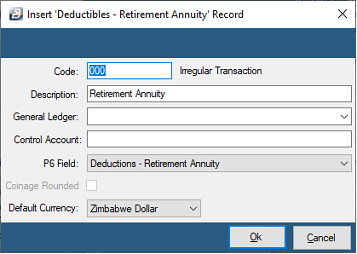
To create a 'Deductibles - Retirement Annuity' Transaction Code
- Go to the 'Edit', 'Transaction Codes' menu options.
- Click 'Insert' and select the Transaction Category for Retirement Annuities/Tax Deductibles.
- Accept/Change the default 'Code'.
- Enter an appropriate 'Description' (e.g., "Retirement Annuity (External)").
- Enter the standard 'Amount' or tick 'Manual Edit' to enter the exact annuity payment during processing.
- Select the 'General Ledger' Code.
- Set the 'Duration' (Single, Multiple, or Indefinite).
- Set the 'P6 Field' for year-end ITF16 export.
- Set the 'Default Currency'.
- Click 'Ok' to save the new Transaction Code.
Tax - Deductibles (Amounts)
Use the 'Tax - Deductibles' Transaction Category to process general expenses incurred by the employee, outside the payroll, that are tax-deductible (e.g., professional membership contributions, trade, or professional expenses).
To create a 'Tax - Deductible' Transaction Code
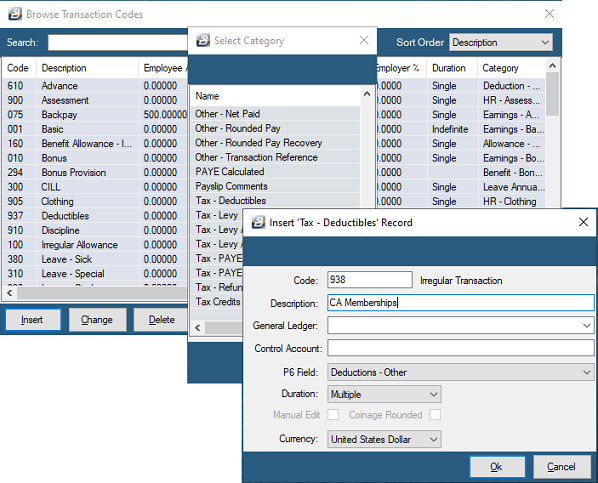
- Go to the 'Edit', 'Transaction Codes' menu options.
- Click 'Insert' and select the Transaction Category 'Tax - Deductibles'.
- Accept/Change the default 'Code'.
- Enter an appropriate 'Description'.
- Enter the specific 'Amount' to be deducted from taxable income, or tick 'Manual Edit' to allow manual entry during the payroll run.
- Select the 'General Ledger' Code to ensure accurate journal tracking.
- Set the 'Duration' — whether the deductible applies for a 'Single' period, 'Multiple', or 'Indefinite'.
- Set the 'P6 Field' for year-end ITF16 export to ensure the deduction reflects correctly on tax certificates.
- Set the 'Default Currency'.
- Click 'Ok' to save the new Transaction Code.
Was this page helpful?