Banks & Branches
Belina Payroll comes with a comprehensive list of banking institutions, their branches and sort codes available for use. These are used primarily to assist in paying employees by bank transfer. Enter the bank details for each employee in the Employee Master. Facility is also given to specify the percentage of net pay to be paid to any number of banks.

To set up Banks and Branches:
View written instructions
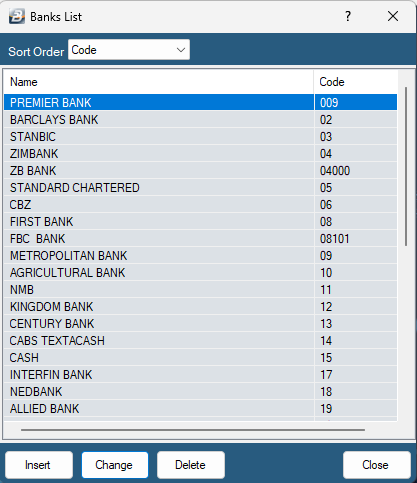
- Go to the 'Edit', 'Organizational', 'Banks', then 'Banks List' menu options.
The list of Banks shows the bank and the bank sort code. Double click on the bank to obtain a list of that bank's branches. The 'Branch' code shows the Bank Code as well as the branch reference, giving a 5 digit number.
To create a new bank:
-
Click 'Insert' from the 'Banks' table.
-
Enter the 'Bank Name' and the Bank 'Code' which is normally the first two numeric characters from the Bank Branch Sort Code.
To create a new branch:
- Press 'Insert' from the Banks table to add a new branch.
The 'Bank Name' and the first two numeric characters from the Bank Code come through automatically into the Branch Code.
-
Enter the Branch Code, Name, Address, Swift and IBAN details.
-
Press OK to save the Branch
-
Press OK to save the Bank.

If you are looking to setup EcoCash in Belina, it will be set up as a bank following the steps below.
To setup EcoCash Bank
View written instructions
- Go to the 'Edit', 'Organizational', 'Banks', then 'Banks List' menu options.
-
Click 'Insert' to create the bank
-
Enter 'Bank Name' as 'EcoCash'
-
Enter 'Code' as 'EcoCash'
-
Enter the Ecocash email addresses provided by EcoCash. If there are multiple email addresses, separate them with a comma (,).
-
Click 'Insert' to add a branch
-
Create the Branch Code as Ecocash
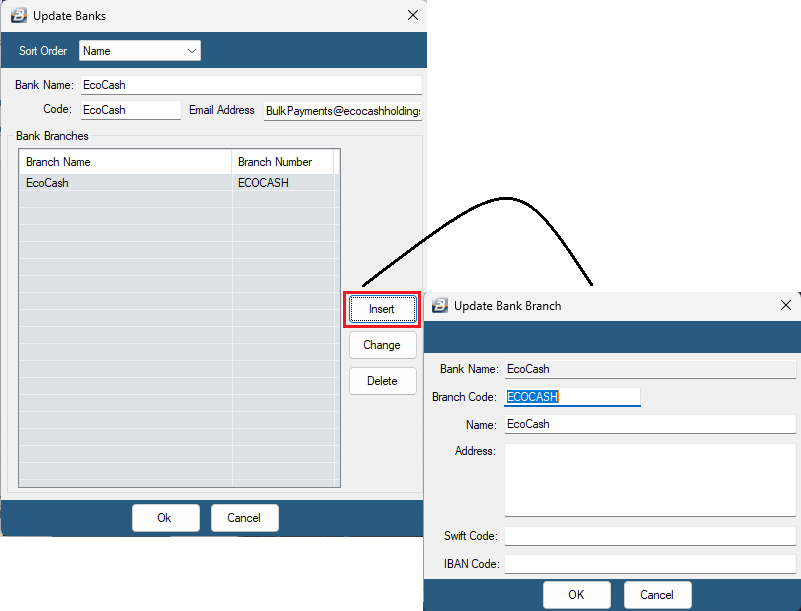
The 'Address', 'Swift Code' and 'IBAN Code' are optional fields that can be completed, but are not essential.
- Click 'OK' to save.
Was this page helpful?