Internal Grades
Belina Payroll allows you to set up an internal grading system to manage employee pay and working conditions based on defined grade levels. Each grade can be linked to a specific rate of pay and set of working conditions. This setup is especially useful when calculating service allowances or salary adjustments that are based on the grade rate rather than the standard employee rate of pay set in the Employee Master.
Creating an Internal Grade
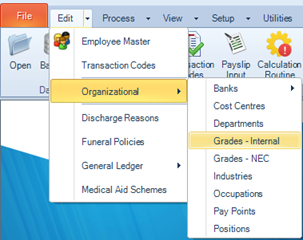
- Go to Edit > Organizational > Grades – Internal.
- From the table listing Internal Grades, click Insert.
- Enter the Internal Grade Name and Description.
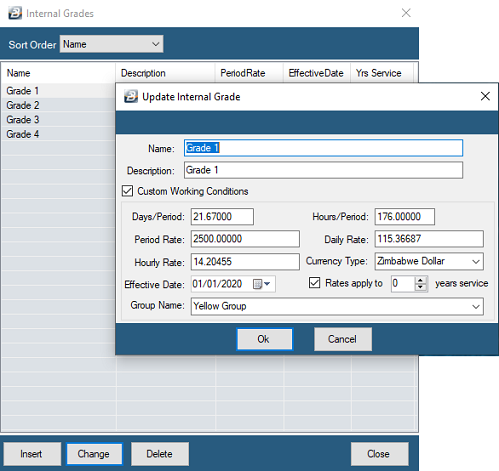
| Custom Working Conditions | If there are 'Custom Working Conditions' tick the 'Custom Working Conditions' checkbox |
|---|---|
| Days/ Period | Enter the number of Days per period if they are different from what is set up in the 'Periods' table |
| Hours/ Period | Enter the number of hour per period if they are different from what is set up in the 'Periods' table, |
| Period Rate | Enter the Period rate that applies to the grade |
| Daily Rate | The daily rate is calculated automatically by the system based on the period rate and the number of days in the period |
| Hourly Rate | The hourly rate is calculated automatically by the system based on the period rate and the number of hours in the period. |
| Currency type | Select the currency that the rate of pay is denominated in. |
| Effective Date | Enter the effective date of the grade. |
| Rates apply to | Set the number of years required in order to qualify for the particular grade. The system checks grades during a period end process to auto increment the grade for the next period, if necessary. See Global Defaults for automatic Internal Grade change steps. |
| Group Name | Grades can be grouped each having its own incremental path |

The system will automatically calculate the Daily Rate and Hourly Rate based on the working days and hours previously defined.
- Tick the check-box 'Apply This Period' to apply the rate starting from the current pay period.
Note: For multi-currency payrolls, you can tick 'Split Rate of Pay by %' if the payment rate is split by percentage. Specify the percentage allocation for each currency accordingly.
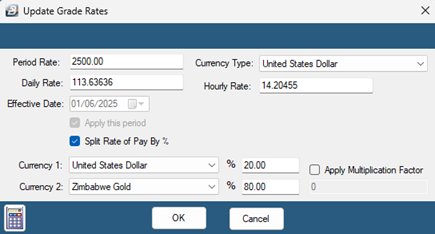
Click OK to save the pay rate, then click OK again to create the Internal Grade.
Repeat this process for each grade that applies to your organization.
Was this page helpful?