Tax Configuration
Tax Configuration
Tax parameters must be set up correctly before processing any payroll. They change each year and must be updated at the start of every new tax year.
Belina Payroll comes with the current tax parameters already setup for you. Thereafter, as revised tax bands are gazetted each year, ensure you are running on the latest Belina version. This update will have the latest tax parameters already setup for you and include the latest software enhancements for you to use at the start of each new year.
Once the software update has been installed implement the new tax parameters by
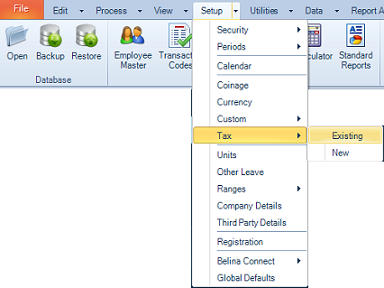
- Going to the Setup - Tax - Existing menu options.
- Enter the Effective Date of the tables which is the first day of the new tax year i.e. 01/01/202X. The tax tables will automatically populate. Correct Tax setup is critical, check the tax parameters to ensure that they align with ZIMRA gazetted tax tables.
If the tax tables failed to automatically populate, proceed to create them following the steps below.
Setting Up Tax Parameters
View written instructions
Go to Setup → Tax → New
The Tax Parameters window opens. Enter the tax bands and rates as published by ZIMRA for the current year.
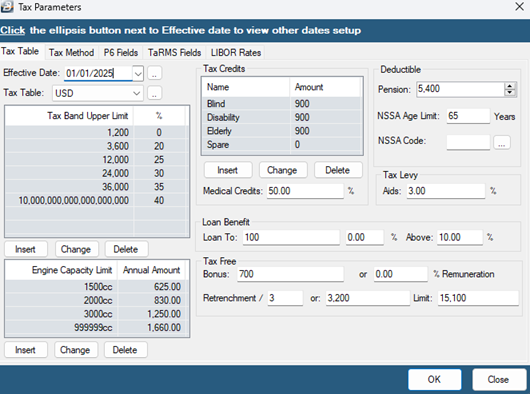
| Effective Date | The date that tax parameters become effective (normally the first day of the year). Use the ellipsis box to Auto Create Tax Tables. This is usually done after the budget has been released towards the end of the tax year and you have upgraded your software with a version containing the updated tax tables. |
|---|---|
| Tax Band Upper Limit | Use the 'Insert' and 'Change' buttons (see Navigation & Interface) to enter, or update, the upper limit for each tax band and the percentage tax rate that applies to that band. The upper limit of one band is automatically taken as the lower limit for the next. |
| Engine Capacity Limit | Use the 'Insert' and 'Change' buttons (see Navigation & Interface) to enter, or update, the range of engine capacities and the deemed ZIMRA vehicle benefit. |
| Tax Credits | Use the 'Insert' and 'Change' buttons (see Navigation & Interface) to enter, or update, the types of credits and credit amounts that apply. |
| Medical Credit % | Enter the Tax Credit percentage that will be applied to medical expenses processed through the payroll. |
| Tax Free Bonus | Enter the tax free annual bonus amount for the tax year (announced towards the end of the tax year by the Minister of Finance in the annual budget statement). |
| Loan Benefit | A loan benefit arises where a loan, or credit, exceeding the specified loan amount (currently $100) is given to an employee. The benefit, if any, is deemed to be the difference in the amount of interest charged and the amount that would have been charged if the LIBOR rate plus 5% was charged. A benefit also arises if any amount of the loan is written off. See comment 'LIBOR Rates' below. |
| Retrenchment | There are tax concessions for those employees that are retrenched. Part of the retrenchment package is tax free. A stated amount is tax free or a percentage of the first $x is tax free which ever is the higher amount. |
| Deductible Pension | The Finance Act allows pension contributions as a tax deduction. The Pension Deduction is the lower of a specified amount or a percentage of emoluments, which-ever is lower. Enter the amount and percentage. |
| NSSA Age Limit | Enter 65, the age at which NSSA deductions cease to be made. No NSSA contributions are made from employees that are over 65 year old or who turn 65 during the current tax year. |
| NSSA Code | Enter, or use the Ellipsis button to look-up, the NSSA Transaction Code |
| Tax Levy - Aids | Enter the Aids Levy percentage to be applied to the PAYE amount. |
Example of Tax Tables set up in USD currency:
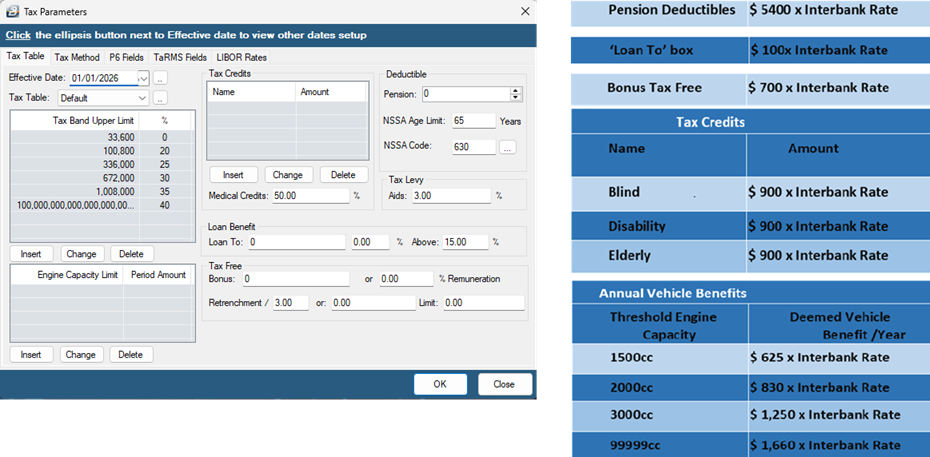
Example of Tax Tables set up in ZiG currency:
Tax Methods
Each employee is assigned a tax calculation method in their Employee Master record. The three main methods are:
| Method | When to Use |
|---|---|
| FDS Average | Averages the earnings to date and projects that average forward to the end of the year to estimate annual income. |
| FDS Forecast | Takes the earnings to date, then adds to this a projection of the current basic and selected earnings to estimate annual income. |
| PAYE / Non-FDS | Seasonal, casual, contract employees, or those who join during the year |
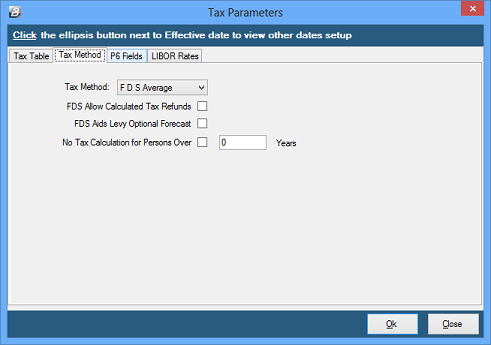
| FDS Allow Calculated Tax Refunds | Tick to allow Belina Payroll to refund any PAYE amount that may have been over-deducted during the course of the year. This may occur if PAYE was being computed manually, or by another system, before the implementation of Belina Payroll. The result is a positive (addition) to the employee's pay. |
|---|---|
| FDS Aids Levy Optional Forecast | Leave un-ticked - only used in very specific circumstances. |
| No Tax Calculation for Persons Over | Leave un-ticked - only used in very specific circumstances |
P6 fields
The P6 Fields tab shows the P6 field allocated to each Transaction Code setup in the system. When creating Transaction Codes a default P6 field is allocated to the transaction. These can be amended if necessary.
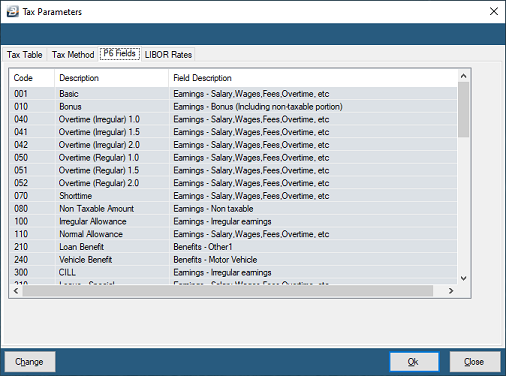
Check and agree the positioning of the Transaction Codes on the P6 to ensure that they correctly reflect the circumstances in your organization. To change a P6 allocation highlight the Transaction Code and click Change.
TaRMS Fields
Verify that all the transaction codes in your payroll are allocated their respective TaRMS fields that they correspond to.
Go to Setup - Tax - Existing - TaRMS Fields you will get a window like the one below.
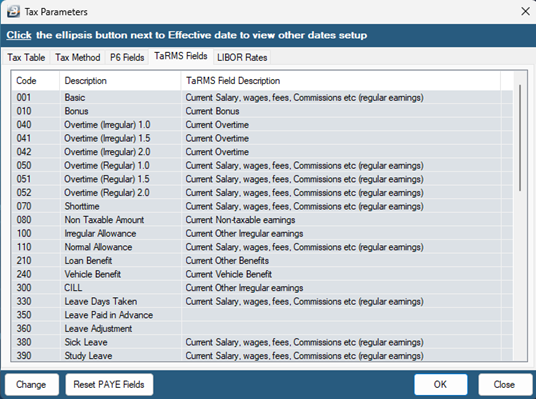
It is important for you to confirm if your transaction codes have been assigned the correct TaRMS Field Description which are the headings in the ZIMRA provided PAYE template. Use the following Key as a reference.
| Tarms Field Description | Key |
|---|---|
| Current Salary, wages, fees, Commissions etc. (regular earnings) | All regular earnings which are earnings processed every month e.g. Basic, Allowances and Regular overtime |
| Other Exemptions on Current Salary, wages, fees, Commissions etc. (regular earnings) | Other Exemptions on Current Salary, wages, fees, Commissions etc. (regular earnings) |
| Current Overtime | Irregular Overtime |
| Current Bonus | Bonus paid that month |
| Current Irregular Commission | Irregular Commission (if any) |
| Current Other Irregular earnings | All other irregular earnings e.g. Back pay or any payment made once off or not paid out every month |
| Current Housing Benefit | Housing Benefit |
| Current Vehicle Benefit | Vehicle Benefit |
| Current Education Benefit | School fees or any other educational benefits |
| Current Other Benefits | Other benefits e.g. Fuel, Airtime or Loan Benefit |
| Current Non-taxable earnings | Any non-taxable earnings e.g. repayment of money |
| Current Pension Contributions | Other Pensions e.g. Old Mutual Pension |
| Current NSSA Contributions | Nssa Pension contribution |
| Current Retirement Annuity Fund Contributions | Current Retirement Annuity Fund Contributions |
| Current NEC Subscriptions | NEC Levy /Trade union/Professional subscriptions |
| Current Other Deductions | Other deductions |
| Current Medical Aid Contributions | Medical Aid transaction codes |
| Current Medical Expenses | Medical Expenses transaction codes |
| Current Blind persons credit | System populated |
| Current Disabled persons credit | System populated |
| Current Elderly person credit | System populated |
If you need to change the TaRMS Field Description Highlight the Transaction Code and Click Change.
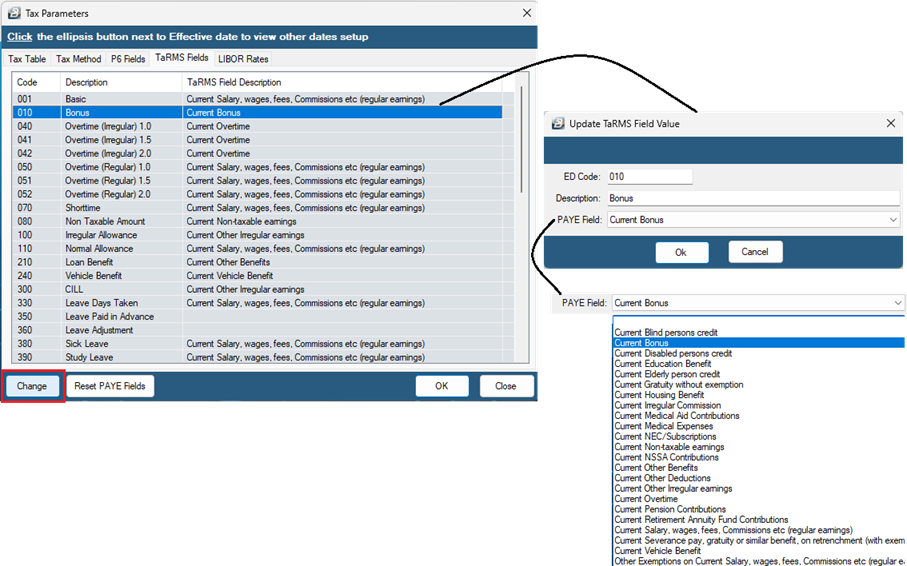
Use the Dropdown under PAYE Field to change the TaRMS Field Description to the correct one and click OK. Repeat the same process for any TaRMS Fields that need to be updated.
LIBOR Rates
Libor (London Interbank Offered Rate) Rates are available from the ZIMRA website, currently at : https://www.zimra.co.zw/domestic-taxes/london-interbank-offered-rates-libor
LIBOR rates are announced each working day and come in 15 different maturities (from overnight to 12 months). At 1 January 2020 this ranged from 1.6708 (30 days) to 1.9166% (1 year) maturities. Using a LIBOR rate of 6.92 would therefore be prudent.
To setup the LIBOR rates that apply:
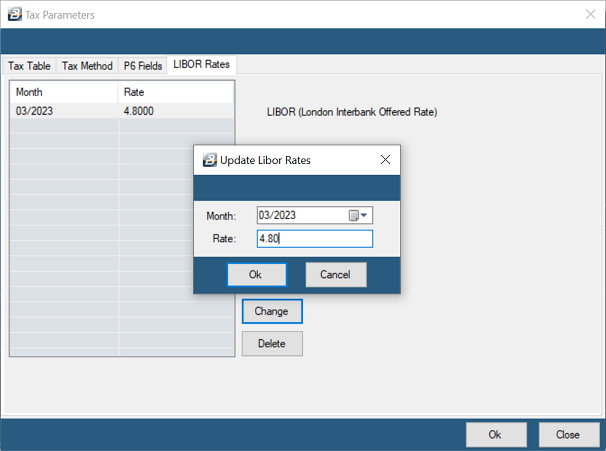
- Go to the Setup - Tax - Existing
- Select the LIBOR Rates' tab
- Use the 'Insert' and 'Change' buttons (see keyboard conventions) to enter, or update, the LIBOR rate that applies.
If tax rates change during the course of the tax year, Belina Payroll can accommodate the change. Simply enter the tax parameters for the new tax 'year' and enter the effective date. When doing this make sure that the tax parameters are set as if they were to apply for the full 12 months, even though in reality they will only apply for some of the periods of the year. As the payroll proceeds from period to period it will automatically pick up and apply the new tax parameters. Printing the ITF16 and P6's is a simple matter of entering the period range applicable.
Was this page helpful?