NEC Grades
Some organizations use grading systems governed by the National Employment Council (NEC) for their industry. In that case the NEC stipulates working hours and pay rates for each grade. The NEC may also stipulate the leave entitlement per grade.
Setting up NEC Grades
If employees are being paid according to NEC grades first create the NEC Grades, as shown below:
View written instructions
Step 1 – Set Up NEC Grades
- Go to Edit > Organizational > Grades – NEC.
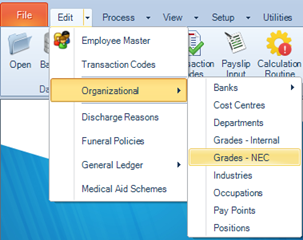
- From the table listing NEC Grades, click Insert.
- The NEC Code will automatically populate. Enter the NEC Grade Name and Description.
- Tick Custom Working Conditions if you want to define specific working days, working hours, and an effective date for this grade.
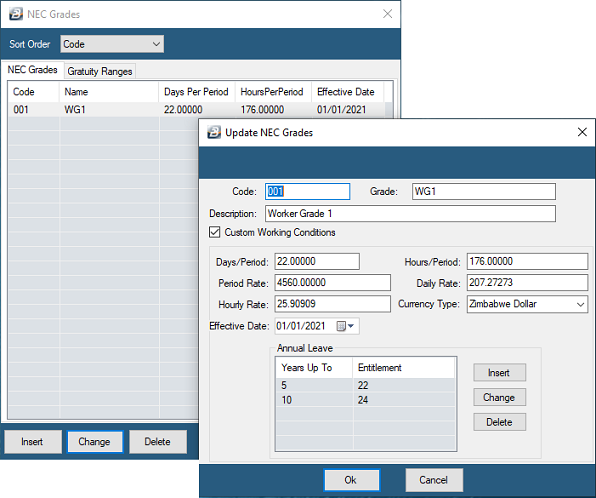
To set the pay rate for the grade:
- Click Insert under the Pay Rates table section
- Enter the Period Rate and select the Currency Type.
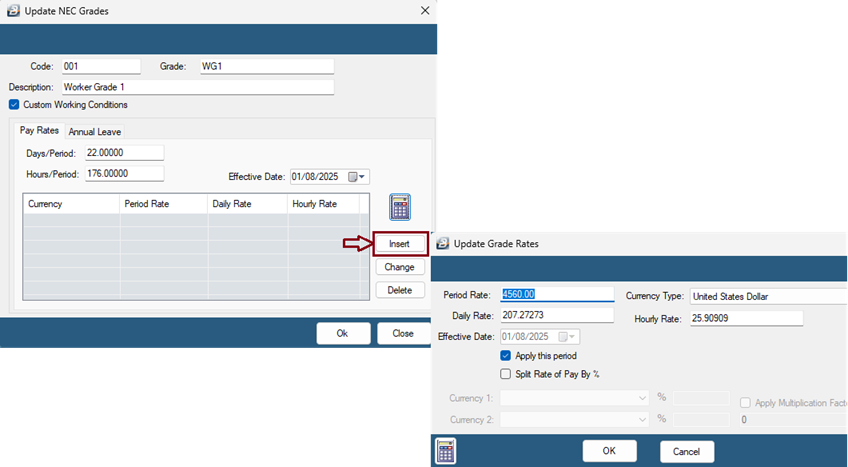
The system will automatically calculate the Daily Rate and Hourly Rate based on the working days and hours previously defined.
- Tick the checkbox 'Apply This Period' to apply the rate starting from the current pay period.
Note: For multi-currency payrolls, you can tick 'Split Rate of Pay by %' if the payment rate is split by percentage. Specify the percentage allocation for each currency accordingly.
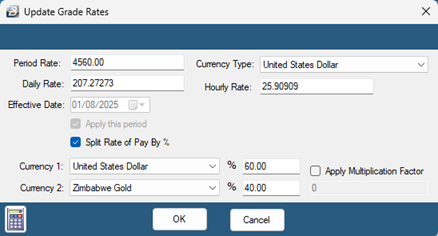
- Click OK to save the pay rate.
Repeat this process for each grade that applies to your organization.
Setting up NEC Leave Entitlements
To use the NEC annual leave entitlement for your employees follow these steps.
- Go to Edit > Organizational > Grades – NEC.
- From the table listing NEC Grades, select the NEC Grade.
- Click the Annual Leave tab.
- Click 'Insert' to setup the NEC leave entitlement
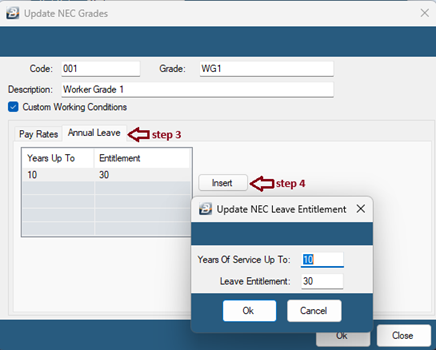
- Enter the Years of service upper band and the leave entitlement that applies then click OK.
Repeat this process to set up the leave entitlement for the different years of service ranges.
- Click OK to save changes to the NEC grade.
- Setup Employees to use NEC Leave Entitlements. See Employee Master.
Setting up NEC Gratuity Ranges
The amount of the gratuity is calculated by multiplying the percentage, the number of completed years of continuous service and the employee’s Basic salary. To use the NEC Gratuity Ranges for your employees follow these steps.
Step 1:
- Go to Edit > Organizational > Grades – NEC.
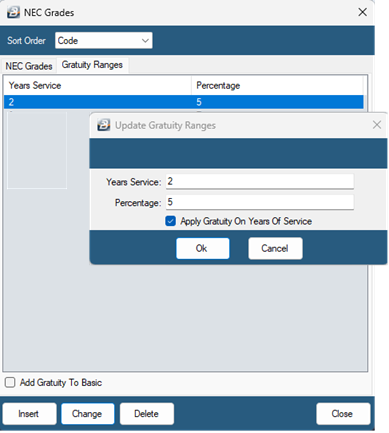
- Click on the Gratuity Ranges tab.
- Click Insert
- Enter the Years of Service and the percentage that applies.
- Tick 'Apply Gratuity on Years of Service' if you want the calculation based on the employee’s completed years of service.
- Click OK
Step 2: Create the Gratuity Transaction Code
To create the transaction code for Gratuity see: Earnings-Gratuity
Step 3 – Insert Gratuity on Payslip
You can process gratuity using Payslip Input which allows capturing payslip transactions for individual employees. Use Bulk Input or Speed Input as alternative methods.
To process using Payslip Input see: Payslip Input
Was this page helpful?