Benefits
To Create a Benefit Transaction Code
Benefit - Bonus Provision
Use this transaction code when there is a plan to give a bonus at the end of the year and you would like to account for the cost of the bonus on a gradual basis throughout the year. By creating this code, the accounting transactions accrue a balance into the relevant accounts. The transaction does not affect the employee's earnings in the periods it is processed, nor does it affect the taxation calculated and the net pay.
To create a 'Benefit - Bonus Provision' Transaction Code
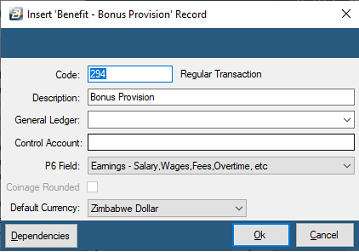
- Go to the 'Edit', 'Transaction Codes' menu options.
- Click 'Insert' and select the Transaction Category 'Benefit - Bonus Provision'.
- Accept/Change the default 'Code'. This is a unique identifier designed to group similar types of transactions together.
- Enter an appropriate 'Description'.
- Select the 'General Ledger' Code to be entered onto journal reports and exports.
- Set the 'P6 Field' for year-end ITF16 export.
- Set the 'Default Currency' that this transaction code will be paid in.
- Click 'Ok' to save the new Transaction Code.
- Dependencies: This Transaction Code can be based on a percentage, amount, or number of units stated in one or more dependent Transaction Codes.
Benefit - Gratuity Provision
If there is a plan to accrue the cost of gratuities paid for employees that will eventually terminate employment, it is possible to account for the cost of the gratuity bonus on a gradual basis through the year. By creating this code, the accounting transactions accrue a balance into the relevant accounts. The transaction does not affect the employee's earnings in the periods it is processed, nor does it affect the taxation calculated and the net pay. Gratuity payments are particularly relevant where contracts are being worked and a gratuity is paid at the termination of the contract.
To create a 'Benefit - Gratuity Provision' Transaction Code
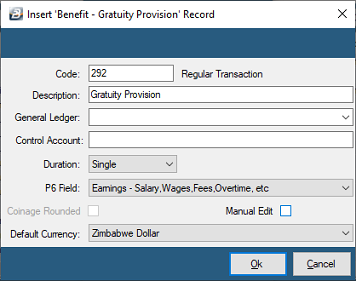
- Go to the 'Edit', 'Transaction Codes' menu options.
- Click 'Insert' and select the Transaction Category 'Benefit - Gratuity Provision'.
- Accept/Change the default 'Code'.
- Enter an appropriate 'Description'.
- Select the 'General Ledger' Code to be entered onto journal reports and exports.
- Set the 'P6 Field' for year-end ITF16 export.
- Set the 'Default Currency' that this transaction code will be paid in.
- Click 'Ok' to save the new Transaction Code.
Benefit - Housing
The housing benefit is based on the value to the employee, which is usually the market value of the accommodation. (Note: The value could be less where the employee is forced by work circumstances to stay in a house above his/her standard. As a guideline, you could use 12.5% of the basic or 7.5% of the market value of the house. Professional advice from a Human Resources consultant or ZIMRA is recommended).
To create a 'Benefit - Housing' Transaction Code
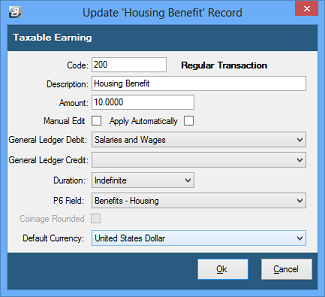
- Go to the 'Edit', 'Transaction Codes' menu options.
- Click 'Insert' and select the Transaction Category 'Benefit - Housing'.
- Accept/Change the default 'Code'.
- Enter an appropriate 'Description'.
- Enter the 'Amount' of the value of the benefit. If the amount varies, leave blank and place a tick against 'Manual Edit' to allow entry during processing.
- Check 'Insert Automatically' if you would like the Transaction Code to be put on every person's payslip each period.
- Select the 'General Ledger' Code to be entered onto journal reports and exports.
- Set the 'Duration' — whether the transaction is to come through for a 'Single', 'Multiple', or 'Indefinite' number of periods.
- Set the 'P6 Field' for year-end ITF16 export.
- Set the 'Default Currency' that this transaction code will be paid in.
- Click 'Ok' to save the new Transaction Code.
Benefit - Loan
Use 'Loan - Benefit' to set up a Transaction Code to have the value of a loan benefit calculated automatically for employees receiving loans at low-interest rates. The value of a loan benefit is computed automatically by Belina PayrollHR if the amount of interest charged on a loan is lower than the ZIMRA rate set up under the loan tax parameters.
To create a 'Loan - Benefit' Transaction Code
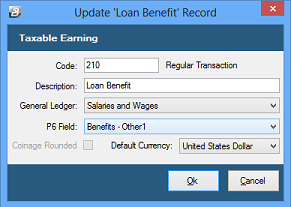
- Go to the 'Edit', 'Transaction Codes' menu options.
- Click 'Insert' and select the Transaction Category 'Loan - Benefit'.
- Accept/Change the default 'Code'.
- Enter an appropriate 'Description'.
- Select the 'General Ledger' Code to be entered onto journal reports and exports.
- Set the 'P6 Field' for year-end ITF16 export.
- Set the 'Default Currency' that this transaction code will be paid in.
- Click 'Ok' to save the new Transaction Code.
Benefit - Other (Irregular & Regular)
- Irregular: An irregular benefit is one that is, or is anticipated to be, paid occasionally during the year. It is added but not projected in the calculation of income for tax purposes.
- Regular: A regular benefit is one that is, or is anticipated to be, paid regularly through the year. It is included in the projection of income for tax purposes.
To create a 'Benefit - Other' Transaction Code
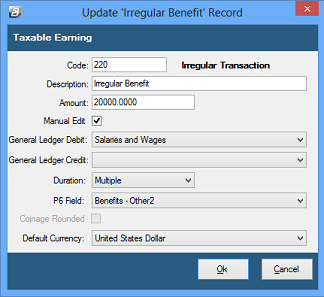
- Go to the 'Edit', 'Transaction Codes' menu options.
- Click 'Insert' and select the Transaction Category 'Benefit - Other (Irregular)' or 'Benefit - Other (Regular)'.
- Accept/Change the default 'Code'.
- Enter an appropriate 'Description'.
- Enter the 'Amount' or value of the benefit. If the amount varies, leave blank and place a tick against 'Manual Edit' to allow entry during processing.
- Select the 'General Ledger' Code to be entered onto journal reports and exports.
- Set the 'Duration' (Single, Multiple, or Indefinite).
- Set the 'P6 Field' for year-end ITF16 export.
- Set the 'Default Currency' that this transaction code will be paid in.
- Click 'Ok' to save the new Transaction Code.
Benefit - Vehicle
A vehicle benefit is taken as a regular earning. The value of vehicle benefits is stipulated by vehicle size in the annual budget gazetted each year. (Note: The vehicle benefit can be set up to work with a Vehicle Allowance where an allowance is given to the employee to coushion the amount of tax payable on the benefit).
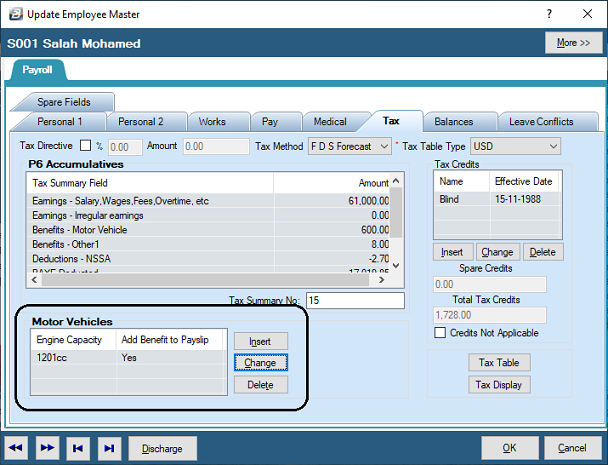
To create a 'Benefit - Vehicle' Transaction Code
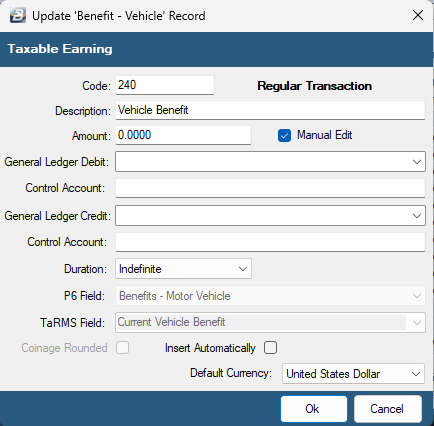
- Go to the 'Edit', 'Transaction Codes' menu options.
- Click 'Insert' and select the Transaction Category 'Benefit - Vehicle'.
- Accept/Change the default 'Code'.
- Enter an appropriate 'Description'.
- Enter the 'Amount' of the vehicle benefit. If the amount varies, leave blank and tick 'Manual Edit' to allow entry during processing.
- Check 'Insert Automatically' if you would like the Transaction Code to be put on every person's payslip each period.
- Select the 'General Ledger' Code to be entered onto journal reports and exports.
- Set the 'Duration' (Single, Multiple, or Indefinite).
- Set the 'P6 Field' for year-end ITF16 export.
- Set the 'Default Currency'.
- Click 'Ok' to save the new Transaction Code.
Was this page helpful?