Allowances
To Create a Allowance Transaction Code
Allowance - Benefit
Belina Payroll has a feature that can be used to pay an allowance to compensate for the tax payable on a benefit. When an employee receives a benefit, it increases the tax payable and therefore reduces their Net Paid. Use this feature to ensure that the Net Paid before or after the payment of the benefit is the same.
To 'Cushion' a benefit
To "cushion" a benefit means giving the employee an allowance that compensates for the additional tax being paid. For example, if an employee has a net pay of $500 and is given the use of a company car which has a tax benefit, processing a Benefit Allowance ensures they receive an allowance equal to the additional tax payable, leaving their net pay at the original $500.
View written instructions
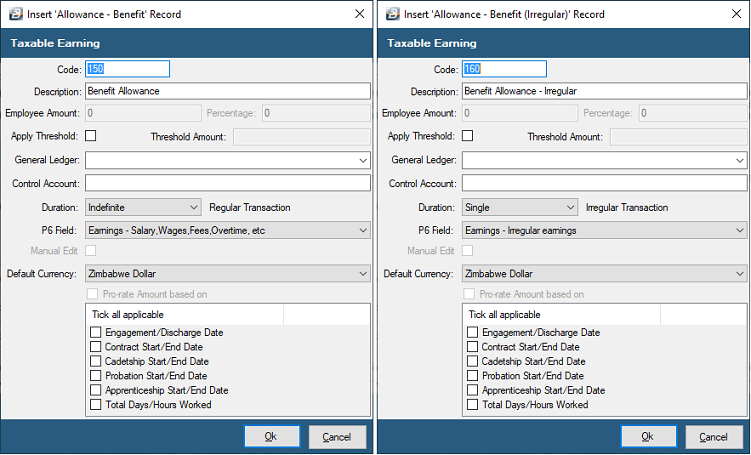
- Go to the 'Edit', 'Transaction Codes' menu options.
- Click 'Insert' and select the Transaction Category 'Allowance - Benefit'.
- Accept/Change the default 'Code'.
- Enter an appropriate 'Description'.
- Note: The 'Employee Amount' is greyed out because the amount of the allowance is automatically computed.
- Select the 'General Ledger' Code to be entered onto journal reports and exports.
- Set the 'Duration' — whether the transaction is to come through for a 'Single', 'Multiple', or 'Indefinite' number of periods.
- Set the 'P6 Field' for year-end ITF16 export.
- Note: 'Manual Edit' is not applicable since the system computes this automatically.
- Click 'Ok' to save the new Transaction Code.
- Pro-rate Allowance: Tick 'Pro-rate Amount based on' if the allowance should be reduced because a full period has not been worked. Select the applicable criteria, and the system will automatically pro-rate the payment based on the period worked.
Allowance - Normal (Regular & Irregular)
Use the 'Allowance - Normal' Transaction Category to process a taxable allowance.
- Regular: Regarded as regular earnings in the FDS calculation, meaning the amount will be included in the projection of annual income.
- Irregular: Used where the allowance is paid sporadically and should not be projected in the FDS calculation.
The amount can be set up as a standard fixed amount, manually entered during processing (if 'Manual Edit' is ticked), or calculated automatically as a percentage of other Transaction Codes using Dependencies.
To create a 'Normal (General) Allowance' Transaction Code
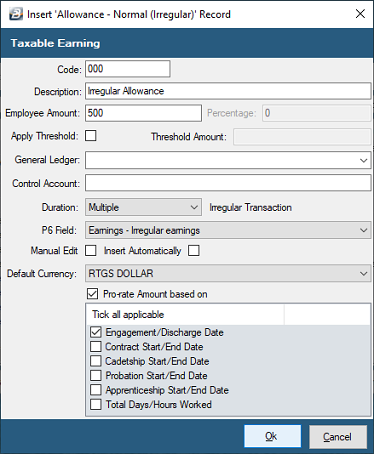
- Go to the 'Edit', 'Transaction Codes' menu options.
- Click 'Insert' and select the Transaction Category 'Allowance - Normal (Regular)' or 'Allowance - Normal (Irregular)'.
- Accept/Change the default 'Code'.
- Enter an appropriate 'Description'.
- Enter the 'Employee Amount' if the payment is a standard amount. If the amount varies, leave blank and place a tick against 'Manual Edit' to allow entry during processing.
- Select the 'General Ledger' Code to be entered onto journal reports and exports.
- Set the 'Duration' (Single, Multiple, or Indefinite).
- Set the 'P6 Field' for year-end ITF16 export.
- Set the 'Default Currency' that this transaction code will be paid in.
- Click 'Ok' to save the new Transaction Code.
- Dependencies: Once saved, re-open the code to access the 'Dependencies' button if you need to link this allowance to the calculations of other Transaction Codes.
- Pro-rate Allowance: Tick 'Pro-rate Amount based on' to automatically reduce the allowance if a full period has not been worked.
Allowance - Service
The 'Allowance - Service' Transaction Code is a way of paying a taxable amount that depends on the number of full years of service an employee has worked for the organization. The value of the Service Allowance is: Basic × Service Allowance Percentage × Years of Service.
To create an 'Allowance - Service' Transaction Code
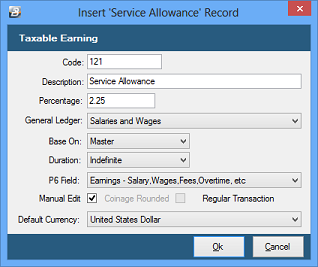
- Go to the 'Edit', 'Transaction Codes' menu options.
- Click 'Insert' and select the Transaction Category 'Allowance - Service'.
- Accept/Change the default 'Code'.
- Enter an appropriate 'Description'.
- Enter the Service Allowance 'Percentage' to be applied in the calculations.
- Select the 'General Ledger' Code to be entered onto journal reports and exports.
- 'Base On': Select whether the basic amount should be based on the Basic entered in the Employee Master, the Internal Grade Rate, or the Grade Rate.
- Set the 'Duration' (Single, Multiple, or Indefinite).
- Set the 'P6 Field' for year-end ITF16 export.
- Tick 'Manual Edit' if you would like to be able to manually override the calculated amount when processing.
- Set the 'Default Currency'.
- Click 'Ok' to save the new Transaction Code.
Allowance - Shift
The 'Allowance - Shift' Transaction Code is a way of paying a percentage of Basic pay (based on the Employee Masterfile, Internal Grade, or NEC Grade) multiplied by the number of shifts worked (which is entered during processing).
To create an 'Allowance - Shift' Transaction Code
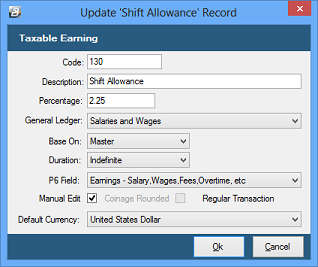
- Go to the 'Edit', 'Transaction Codes' menu options.
- Click 'Insert' and select the Transaction Category 'Allowance - Shift'.
- Accept/Change the default 'Code'.
- Enter an appropriate 'Description'.
- Enter the Shift Allowance 'Percentage' to be applied in the calculations.
- Select the 'General Ledger' Code to be entered onto journal reports and exports.
- 'Base On': Select the base rate (Employee Master, Internal Grade, or Grade Rate) for the percentage calculation.
- Set the 'Duration' (Single, Multiple, or Indefinite).
- Set the 'P6 Field' for year-end ITF16 export.
- Tick 'Manual Edit' to allow manual changes during processing.
- Set the 'Default Currency'.
- Click 'Ok' to save the new Transaction Code.
Allowance - Vehicle
The 'Allowance - Vehicle' Transaction Code is used in conjunction with the Vehicle Benefit Code. Belina Payroll automatically calculates the value of the allowance that should be given to an employee to cover the amount of tax being paid on a vehicle benefit, taking into account the tax on the allowance itself. (If you would like to process a specific, fixed cash amount for a vehicle allowance, use the Allowance - Normal Transaction Type instead).
To create an 'Allowance - Vehicle' Transaction Code
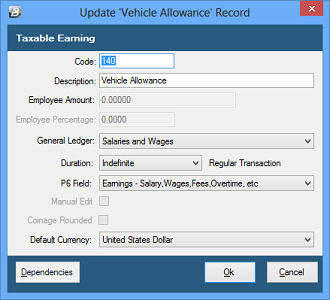
- Go to the 'Edit', 'Transaction Codes' menu options.
- Click 'Insert' and select the Transaction Category 'Allowance - Vehicle'.
- Accept/Change the default 'Code'.
- Enter an appropriate 'Description'.
- Select the 'General Ledger' Code to be entered onto journal reports and exports.
- Set the 'Duration' (Single, Multiple, or Indefinite).
- Set the 'P6 Field' for year-end ITF16 export.
- Set the 'Default Currency'.
- Click 'Ok' to save the new Transaction Code.
Was this page helpful?