Speed Input
Speed Input allows you to select specific Transaction Codes and process them in an automated, rotational sequence for each employee. The routine loops through each tagged transaction code for an employee, one at a time, and then automatically advances to the next employee until all data in your selection has been entered.
- To access this processing method, go to the 'Process', 'Other Inputs', then 'Speed' menu options.
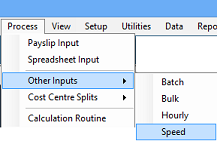
Process selected transactions in an automated loop. Tag the Transaction Codes to be included in the loop and have the routine process each of these against a selected, or a selected range of employees. The routine goes through each Transaction Code, one at a time, and then goes automatically to the next employee.
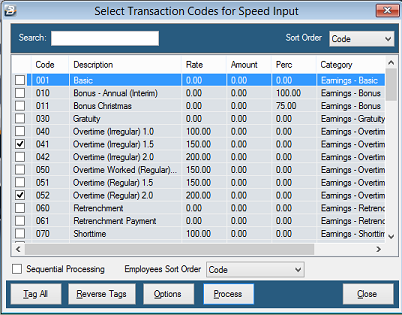
Sequential Processing
Before you begin, you can toggle how you want to move through your employee list:
- With 'Sequential Processing' selected: The system will automatically present one employee at a time based on your configured sort order.
- Without 'Sequential Processing' selected: You must manually select the next employee to process by typing their Employee Code or looking them up using the ellipsis
...button.
Processing Steps
Once your setup is complete, follow these steps to process the loop:
-
Tag Transactions: Tag the specific Transaction Codes you want to include in your processing loop.
-
Select Employees: Use the 'Options' button to select the employees to be processed. (You can select individuals manually or filter by a specific range).
-
Start Routine: Press the 'Process' button.
-
Confirm Employee: The name of the first employee in your selection will display. Press 'OK' to process them, or use the right arrow button to skip them and go to the next person.
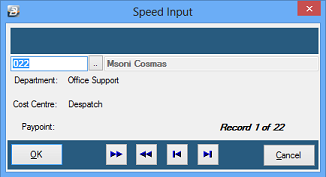
- Enter Details: Enter the amount/details for the first Transaction Code presented for that employee.
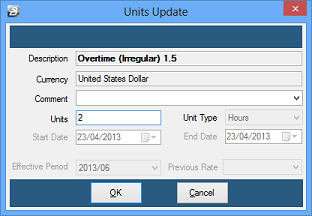
- Loop Through Codes: Continue entering details as the system automatically prompts you for the next, and subsequent, Transaction Codes you tagged in Step 1.
- Loop Through Employees: Once all codes for the first person are entered, the system moves to the next employee. Continue entering details until the entire range is finished.
(Note: All transactions processed using this method will automatically appear on each employee's main Payslip Input screen).
Was this page helpful?