Pay Increase
Depending on the volume of changes and your organizational structure, Belina Payroll provides four methods for applying a pay increase.
Method 1: Manual Pay Increase
Use this method for ad-hoc changes or when only a few individuals require an updated rate.
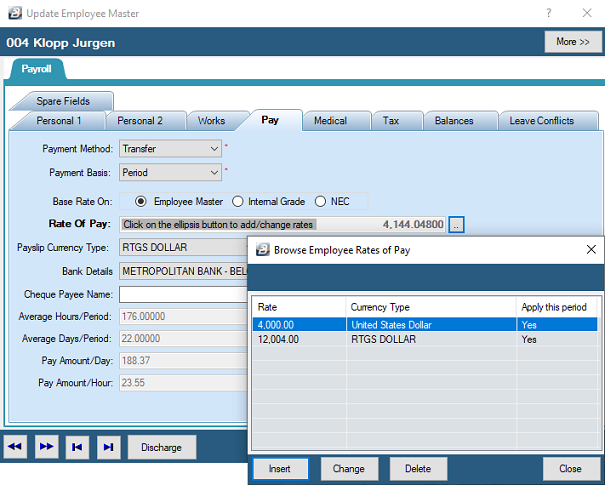
- Go to Edit → Employee Master.
- Select the specific employee whose rate is changing.
- Click the 'Pay' tab.
- (Multi-currency): Click the ellipsis
...button next to the 'Rate of Pay' field and make the necessary changes. - (Single currency): Directly change the figure in the 'Rate of Pay' field.
- Press Close, then press OK on the employee record to save the changes.
Method 2: Pay Increase Module
This utility applies a bulk percentage or fixed amount increase to the entire payroll, specific departments, or tagged individuals. Crucial: Always perform a backup before using this module so you can safely revert if necessary.
View written instructions
Step 1: Setup Parameters
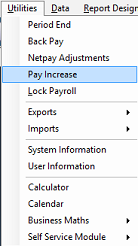
- Go to Utilities → Pay Increase.
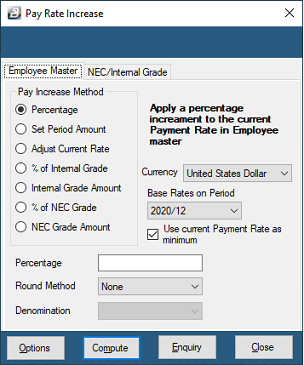
- Choose your base tab: Employee Masterfile or NEC / Internal Grade.
- Select the adjustment type:
| Parameter / Field | Description |
|---|---|
| Percentage | Change the rate(s) of pay by a specified percentage. |
| Set Period Amount | Change the rate(s) of pay to a specified amount. |
| Adjust Current Rate | Change the rate(s) of pay by a specified amount. |
| Base Rates on Period | Base the increase on rates of pay that applied in a specified prior period. |
| Input Value (Percentage / Period Rate / Amount) | The prompt for this field changes based on your selection above. Enter the specific percentage change, the exact rate of pay, or the adjustment amount accordingly. |
| Round Method | Select the required rounding method (based on your Coinage setup):• None: No rounding required.• Nearest: .50 and above rounds up, while 0.49 and below rounds down.• Off/Up: Always round up to the nearest number.• Off/Down: Always round down to the nearest number. |
| Denomination | Use the drop-down menu to select the rounding denomination. Selections available are taken from what has been set up on the Coinage table. |
-
Enter the applicable percentage or amount.
-
Select your rounding method and denomination (based on your Coinage setup).
Step 2: Compute and Verify
- Click 'Options' to filter the target employees (by department, cost centre, or tagged individuals).
- Click 'Compute' to calculate the new rates based on your parameters.
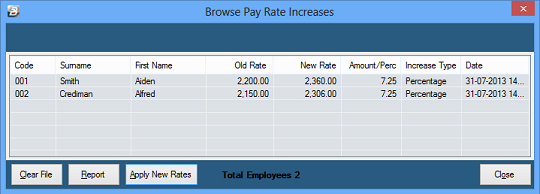
- Click 'Enquiry' to view the results in a table.
- Verification: If the figures are incorrect, press 'Clear file' to discard the calculation and start again. You can also press 'Report' to print a hard copy for verification.
Step 3: Update
- Once thoroughly verified, press 'Apply New Rates'. This permanently locks the new rates into the affected Employee Masterfiles.
Method 3: Grade Rate Change
Use this method if your organization strictly standardizes pay using grade tables.
- Go to Edit → Organizational, then select either 'Internal Grade' or 'NEC Grade'.
- Manually change the standard grade rate. This change will automatically cascade to all employees assigned to that grade.
Method 4: Excel Import
Use this option if you prefer computing complex revised pay rates in an external spreadsheet before bringing the finalized figures into the system.
- Calculate the new rates in Microsoft Excel.
- Import the finalized rates directly into the Employee Master using the standard Spreadsheet Import facilities.
Was this page helpful?