Retrenchment
The Finance Act 13 of 2023 provides a partial tax exemption on retrenchment packages. Belina Payroll automatically calculates this tax based on your configured exemption rules. Any amount above the statutory exemption is taxed using the gazetted tax tables for the year.
- Exempt Amount: The exempt portion is the greater of one-third (1/3) of the total retrenchment package or US$3,200 (or its ZWG equivalent), with a maximum exemption cap of one-third of US$15,100 (which equates to US$5,033.33).
- Taxable Amount: Any balance above the exempt portion is subject to taxation.
- Example: If a package is US$12,000, one-third of the package is US$4,000. Since US$4,000 is greater than US$3,200 and below the statutory cap of US$5,033.33, it is entirely tax-exempt. The remaining US$8,000 becomes the taxable portion.
Step 1: Verify Tax Settings
Before processing, ensure your tax parameters are up to date with current legislation.
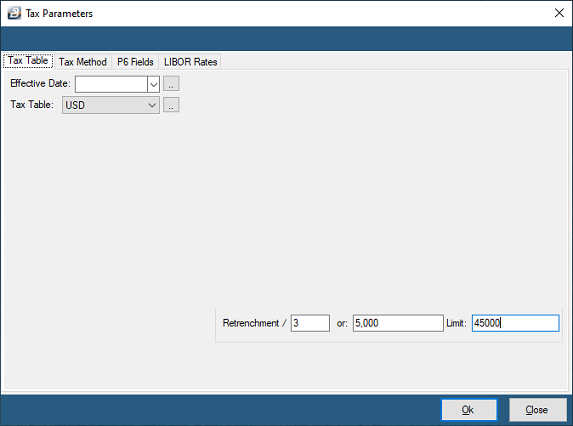
- Go to Setup → Tax → Existing.
- In the bottom right corner of the Tax Settings screen, check the Retrenchment Parameters.Exemption: ⅓ of package or minimum of USD 3,200Limit: USD 5,033.33 (⅓ of USD 15,100)
- Exemption: ⅓ of package or minimum of USD 3,200
- Limit: USD 5,033.33 (⅓ of USD 15,100)
- If the values are incorrect, update them to match the current legislation.
Step 2: Create a Retrenchment Transaction Code
If a retrenchment transaction code does not already exist, you must create one:
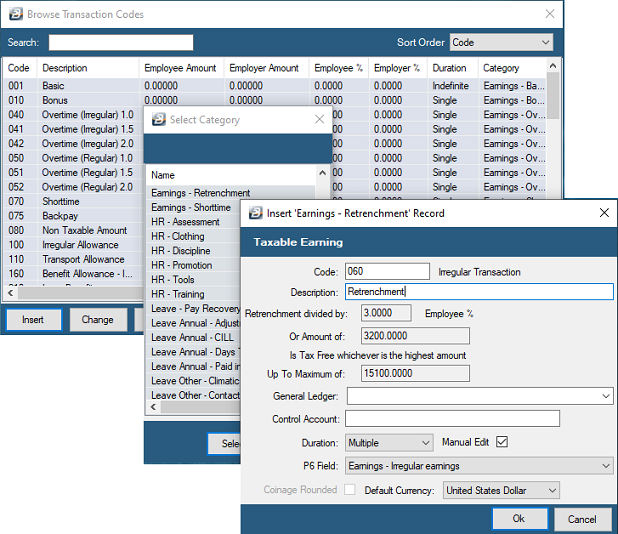
- Go to Edit → Transaction Codes.
- Click Insert and select the 'Earnings - Retrenchment' category.
- Enter a suitable Description (this is what appears on the payslip).
- Verify the Default Currency is correct. (Note: In a dual-currency payroll where the package is processed in two currencies, you must create two separate transaction codes—one in USD and another in ZWG).
- Tick Manual Edit to allow manual amount entry per employee.
- Click OK to save.
Step 3: Insert Retrenchment Amount on Payslip
You can process retrenchment using Payslip Input for individual employees. (You can use Bulk Input or Speed Input if the amounts are identical for groups of employees).
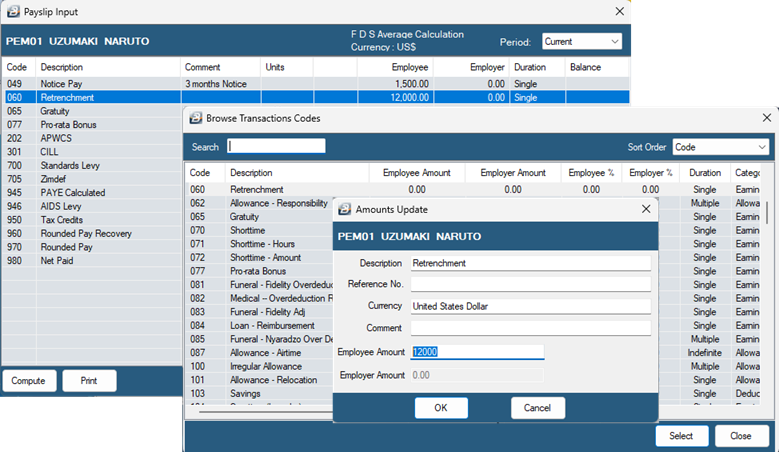
- Go to Process → Payslip Input.
- Select the specific employee being retrenched.
- In the Payslip Input screen, click Insert.
- Select your newly created Retrenchment Transaction Code.
- Enter the final retrenchment amount in the Employee Amount field.
- Click OK to save. (Repeat for any additional employees receiving a package).
Was this page helpful?