Loans & Loan Adjustments Overview
Belina Payroll features a robust loan module that automatically tracks standard or reducing balances and handles interest calculations. Once a loan is captured, the system will automatically deduct the specified repayment amount each period until the balance reaches zero.
Setting Up a Loan
Before processing a loan for an employee, ensure the appropriate Transaction Code exists.
- Go to Edit → Transaction Codes.
- Click Insert and select the appropriate Loan category
- Enter a clear Description and select the correct General Ledger Code for your accounting exports.
- Click OK to save.
Processing a New Loan
Process new loans directly on the employee's payslip. Go to Process → Payslip Input, select the employee, press Insert, and select your Loan Transaction Code. You must specify the following details:
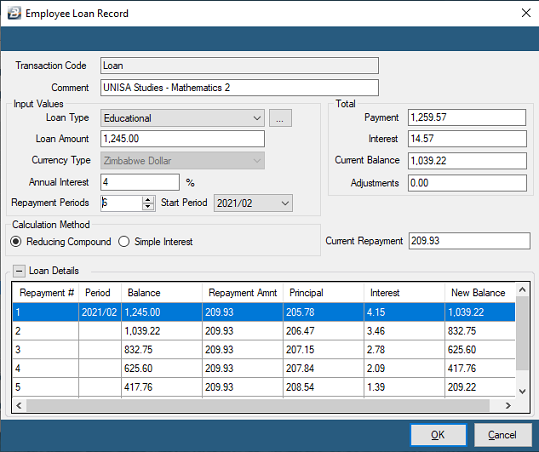
- Loan Type: Select the category of the loan.
- Loan Amount: The full principal amount being borrowed.
- Annual Interest %: The interest rate charged. (Note: If this rate is less than the stipulated ZIMRA rate plus 5%, the system will automatically process the difference as a taxable loan benefit).
- Repayment Periods: The total number of periods over which the loan will be repaid.
- Start Period: The period in which repayments commence (this can be set to start in a future period, and interest will accrue accordingly).
- **Calculation Method:**Reducing Compound: Calculates interest on the reducing balance of the loan. Repayments cover interest first, then the principal.Simple Interest: Calculates interest on the full balance at the outset and divides it equally over the life of the loan.
Changing Loan Parameters
There are often instances where a loan repayment needs to be paused, increased, or settled early. You can adjust active loans directly from the Payslip Input screen:
- Settle Early: Change the periodic repayment amount to match the outstanding balance, which will clear the loan in the current run.
- Pause Repayment: Temporarily change the repayment amount to zero for the current period. (Remember to change it back in the following period).
- Adjust Balance: If the capital balance needs correcting, highlight the active loan transaction on the Payslip Input screen, press Change, and manually override the outstanding balance.
Processing a Loan Adjustment
View written instructions
Step 1: Transaction Code Setup
- Go to Edit → Transaction Codes.
- Check if a Loan Adjustment code exists. If not, click Insert and select the Loan Adjustment transaction category.
- Fill in the required fields and click OK to save.
Step 2: Process the Adjustment on Payslip Input
- Go to Process → Payslip Input and select the employee.
- Select the active Loan Transaction Code being adjusted.
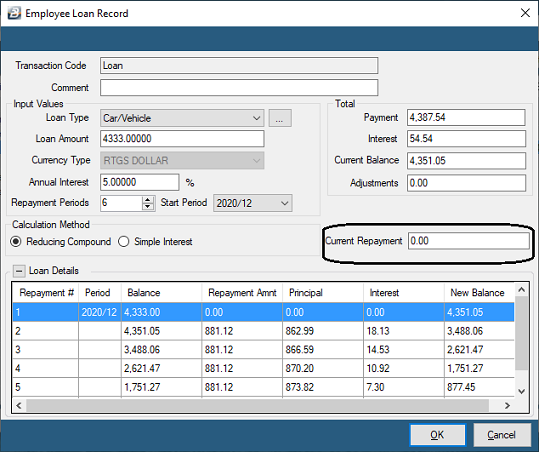
- Set the Current Repayment to 0 if no deduction should occur in the current period (e.g., if the loan was settled outside of payroll).
- Click OK to save the change.
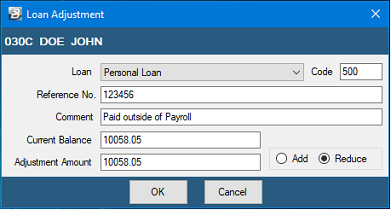
- Click Insert and select your Loan Adjustment Transaction Code.
- Use the Loan dropdown menu to select the specific loan being adjusted, enter the adjustment amount.
- Use the radio button to select whether the adjustment amount will be added (add) or subtracted (reduce) from the loan.
- Click OK.
Tax Implications: The Loan Benefit
If a loan is extended to an employee with low or no interest, ZIMRA deems this a taxable benefit. A benefit arises if the interest charged is less than the stipulated LIBOR rate plus 5%, and the loan capital exceeds the prescribed threshold (e.g., USD $100).
- Setup: Go to Setup → Tax Parameters and locate the Loan Benefit section.
- Enter the current threshold amount (e.g., 100) and the stipulated ZIMRA interest rate percentage.
- If an employee qualifies, the system will automatically calculate the taxable value (the difference between the interest actually charged and the ZIMRA stipulated rate) and push it to the payslip as a taxable benefit.
Was this page helpful?