Processing Medical Aid
Processing Medical Aid contributions manages the employee's standard deduction and calculates the employer's liability. Crucially, employee contributions covering the taxpayer, their spouse, and minor children automatically qualify for a 50% medical tax credit in Zimbabwe.
Note: Belina Payroll automatically computes this 50% credit and immediately offsets it against the employee's Tax Payable amount once the Calculation Routine is run.
Setting up Medical Aid to Process Automatically
Step 1 - Setup the Medical Aid Scheme, Member Types and Contributions
Before processing, ensure the specific scheme and its contribution rates are correctly configured. If this is a new fund or a new employee, please complete the steps in the Medical Aid Schemes setup guide.
Step 2 - Setup for each employee the Member, Spouse, Children and Dependents
Link the scheme to the employee on the Employee Master.
Step 3 - Setup the Medical Aid Transaction Code
Ensure that the Medical aid transaction code has been linked to the Medical aid scheme.
Step 4 - Process the Medical Aid Transaction on the Employee's payslip
Use Payslip Input or other processing methods, including Bulk Input, Spreadsheet Input, Speed Input and Batch Input to process the Medical Aid Transaction Code against employees.
Manual Processing & Adjustments
If you need to manually process a medical aid deduction (e.g., for a mid-month adjustment or arrears) that isn't coming through automatically:
Step 1 - Create the transaction code
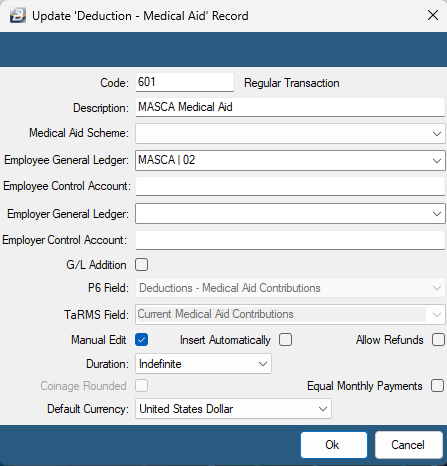
- Go to Edit→ Transaction Codes.
- Click Insert.
- Select 'Deduction - Medical Aid' transaction category
- Enter an appropriate 'Description'.
- Tick Manual Edit to manually enter the specific deduction amount.
- Click OK to save the transaction code.
Step 2 - Insert the transaction code on the employee's payslip
Use Payslip Input, or your chosen input method to process the Medical Aid Transaction Code against employees.
- Using Payslip input: Go to Process - Payslip Input - select the employee and click Insert
- Proceed to select the Medical Aid transaction code and enter the contribution amounts for Employer, Family and Dependants accordingly.
Note: Only the member, spouse, children under 18, or those classified as child students should be included under the Immediate family amount. All others, including children over 18 not in full-time education or other dependents, should be included under Dependents.
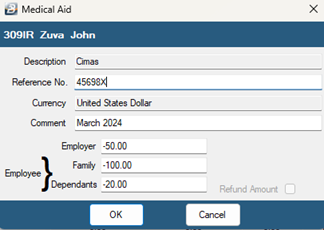
- To carry forward the same Medical Aid contribution amounts into the next period, tick the option ‘Retain values at period end’.
- Click OK to save.
Verifying the Tax Credit
To verify that the medical aid deduction is successfully triggering the statutory 50% tax credit:
- Ensure all transactions are entered and run the full Calculate Tax Routine.
- Go to View → Tax → Tax Display and select the individual employee.
- The medical credit will show under the credits section, immediately reducing their tax payable for the current period. (If the credit value exceeds the tax due, the balance is carried forward into subsequent periods until fully utilized).
Was this page helpful?