BackPay
Backpay occurs when a pay increment comes into effect earlier than what was processed in the payroll, requiring you to pay the employee the difference. Belina Payroll offers two distinct methods for processing backpay: using the automated Backpay Module, or manually calculating and entering the value.
Method 1: Automated Backpay Module
View written instructions
This method automatically computes the backpay value based on system history. Its main advantage is that it accounts for the cost of each specific component being backpaid (e.g., separating Basic Pay from Overtime).
Step 1: Preparation
- Ensure the new rate of pay has been updated in the Employee Master (or via NEC grade/Pay Increase routine).
- Make a reliable system backup.
- Note the exact Transaction Codes (and their specific Transaction Categories) that need to be backpaid.
Step 2: Create Corresponding Backpay Codes
- Go to Edit → Transaction Codes.
- Create a dedicated Backpay code for each transaction being backpaid. Crucial: You must select the exact same Transaction Category as the original code being backpaid.
- Name it clearly (e.g., 'Backpay - Basic Pay'), set the duration to 'Single', and save.
Step 3: Run the Module
- Go to Utilities → Backpay. (Click past the backup warning if you have already taken one).
- Click Insert to add the first Transaction Code being backpaid, and map it to the corresponding backpay code you just created.
- Enter the Start Period and End Period that the backpay covers. Repeat this mapping for any other codes.
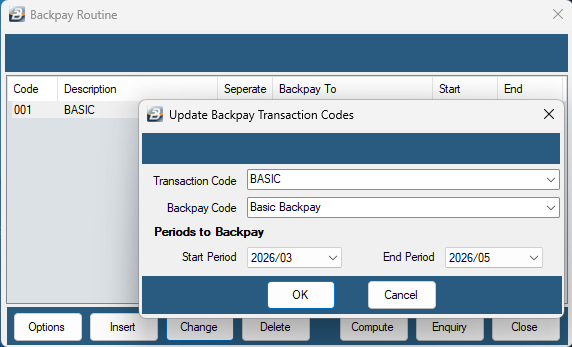
- Use the Options button to select the specific employees to include.
- Press Compute to allow the system to calculate the backpay amounts.
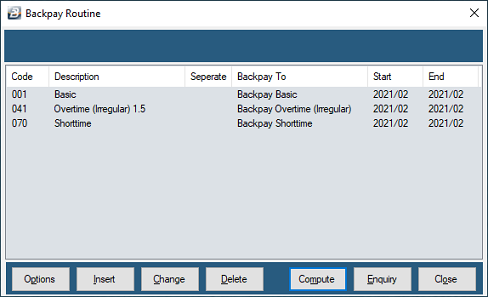
Step 4: Verify and Process
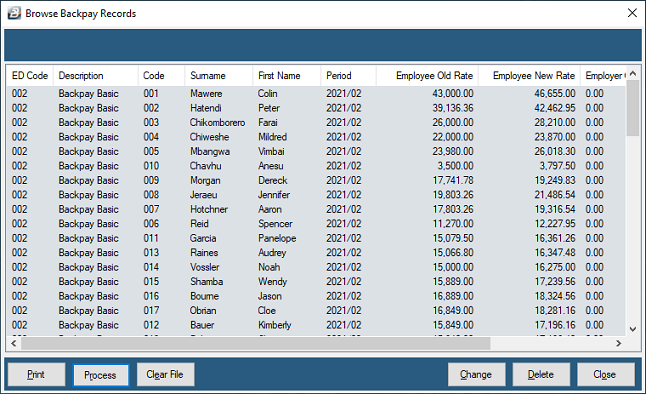
- A preview of the computed backpay will display. You can Change or Delete individual records here. If the calculations are completely wrong, press Clear File to abort and start again.
- When satisfied with the preview, press Process. The amounts will instantly post to the employees' Payslip Input screens.
- (Note: Even after processing, you can reverse the action by clicking 'Enquiry' on the Backpay screen and pressing 'Clear File').
Method 2: Manual Backpay Processing
Use this method if you have already manually calculated the value of the backpay externally (e.g., using an Excel spreadsheet) and simply want to bring the final figure into the payroll.
View written instructions
- Go to Edit → Transaction Codes.
- Create a general 'Backpay' Transaction Code using the 'Earnings - Amount' category.
- Ensure the code allows 'Manual Edit' and set the Duration to 'Single'.
- Use your preferred processing method (such as Payslip Input or Batch Input) to enter the manually calculated amount against the employee.
- Tip: Add a 'Comment' or 'Reference' on the input screen to clearly label what the manual backpay covers.
Was this page helpful?