Batch Input
Batch Input is designed to process transactions in specific batches, featuring optional batch controls (hash totals) to ensure your data entry is complete and accurate before posting.
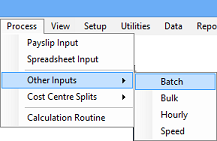
- Go to the 'Process', 'Other Inputs', then 'Batch' menu options.
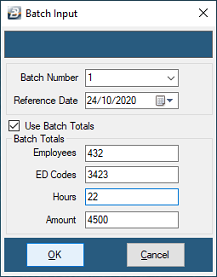
- The Batch Input header will display. Enter the Batch Number, Date, and any batch control totals you wish to use to verify your input.
- Once the header details are captured, the system will prompt you to confirm if the batch should be created. Click Yes to proceed.
Capturing Transactions
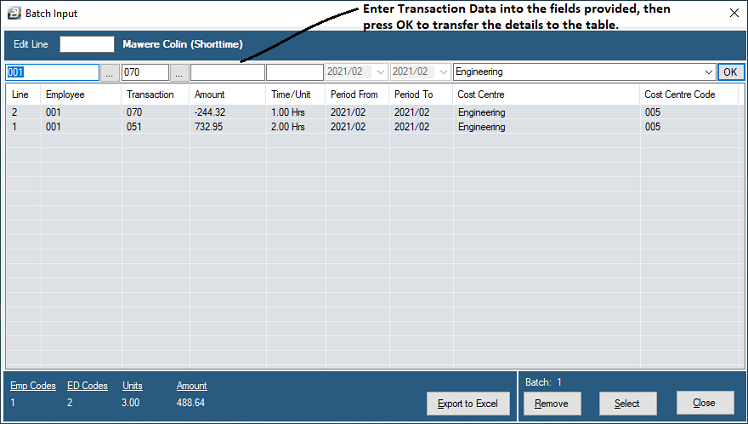
- Enter the individual transactions on the top capture line of the batch screen.
- When the details are entered, press 'OK' to save the transaction down into the processing table, ready for posting to the employee payslips.
Managing Batch Data
While working in the batch table, you can perform several actions on your entered data:
| Action | Description |
|---|---|
| Edit Line / Select | To amend data, either type the line number to be edited or highlight the specific line and press 'Select'. |
| Remove | Highlight any line in the table and press 'Remove' to completely delete that transaction from the batch. |
| Export to Excel | Information in the batch can be exported to Excel. This exported file format can also be used to quickly import data back into the system if needed. |
Closing and Posting the Batch
- When all batch information has been captured and there are no further transactions to process, press 'Close'.
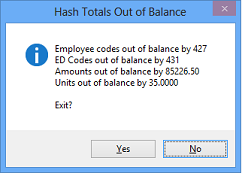
- Hash Totals Check: If the calculated totals of your entered transactions differ from the batch control totals you entered in the header, a warning message will display. You will be given the opportunity to adjust either your individual inputs or your control totals until they balance.
- Automatic Transfer: Upon exiting the batch successfully, all transactions are automatically transferred directly to the employees' Payslip Input screens.
- Note: A batch may be re-opened at any time before the period end to add, delete, or amend transactions. Any changes made will automatically update the employee's Payslip Input in real time.
Was this page helpful?