Bulk Input
Bulk Input allows for the rapid processing (or deletion) of a single (or multiple) transaction code(s) across a selected range of employees simultaneously.
Processing Bulk Input
View written instructions
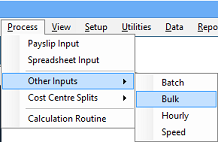
- Go to the 'Process', 'Other Inputs', then 'Bulk' menu options.
- Select the specific Transaction Code you wish to process from the list. (Note: If a Transaction Code is displayed in red, it means it is system-generated or based on other transaction codes and does not need manual entry).
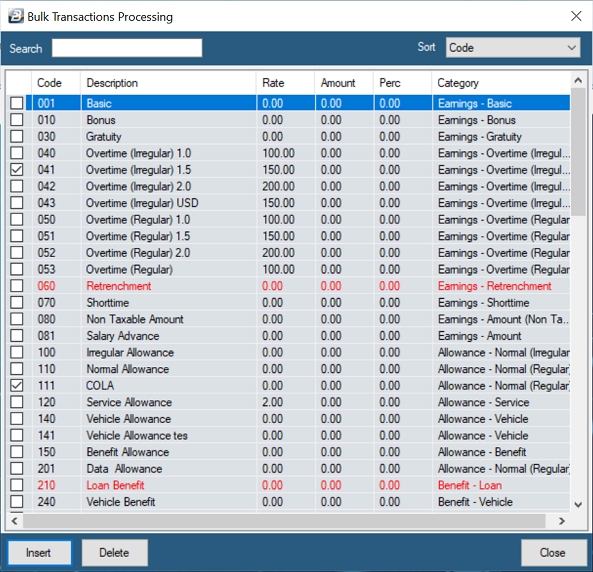
-
Choose your action:Insert: Press this button to add the selected Transaction Code to the employees' payslips.Delete: Press this button to remove the selected Transaction Code from the employees' payslips.
-
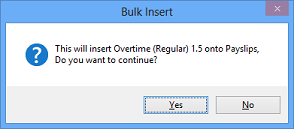
A confirmation screen will appear to verify your selection.
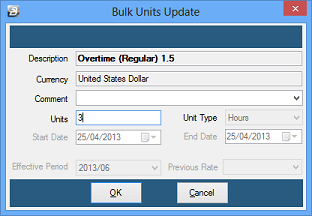
- Entering Values: For standard automated codes (like Basic or Pension), the transaction will go straight through to the payslips. For variable codes (like Overtime hours or a specific cash bonus), a prompt will appear asking you to input the exact amount or value to be applied across the group.
Range Selection & Verification
- Before the transaction is finally processed, a Range Selection screen will appear. Use this to filter the bulk action to specific employees, departments, or cost centres.
- If you simply press 'OK' without selecting a range, the transaction will be processed against every employee on the active payroll.
- Once the bulk process is complete, it is always recommended to check the Payslip Input screen to confirm that the selected transactions were applied correctly for the targeted employees.
Was this page helpful?