Annual Leave Processing
Statutory Basis
The Labour Act stipulates that employees are entitled to 30 calendar days annual leave per annum. The spirit of the law is that employees receive the equivalent of one month's annual leave per annum — an equivalent number of working days can be used instead, as long as the employee is not worse off than if calendar days were used.
Labour Act Chapter 28:01, Section 14A — Vacation leave:
| Clause | Provision |
|---|---|
| (1) | "Qualifying service", in relation to vacation leave accrued by an employee, means any period of employment following the completion of the employee's first year of employment with an employer. |
| (2) | Unless more favourable conditions are provided for in an employment contract or enactment, paid vacation leave accrues at the rate of one-twelfth of qualifying service per year of employment, subject to a maximum accrual of 90 days' paid vacation leave. If an employee is granted only a portion of accrued leave, the remainder may be granted later together with further accrued leave, without forfeiting any accrued leave. |
| (3) | Saturdays, Sundays and public holidays falling within a period of vacation leave count as part of vacation leave. |
| (4) | An employee who becomes ill or injured during vacation leave may cancel the vacation leave and apply for sick leave instead. |
| (5) | Where an employee has no vacation leave accrued, they may be granted vacation leave without pay. |
Transaction Codes
Annual leave days taken or used are processed using three Transaction Codes:
- Leave Annual - Days Taken
- Leave Annual - Paid in Advance
- Leave Annual - CILL (Cash in Lieu of Leave)
These are automatically inserted and ready to use when a new payroll is created. They can also be inserted manually:
- Go to Edit, then Transaction Codes
- If the code doesn't exist, press Insert
- Select the relevant Transaction Category under Leave Annual
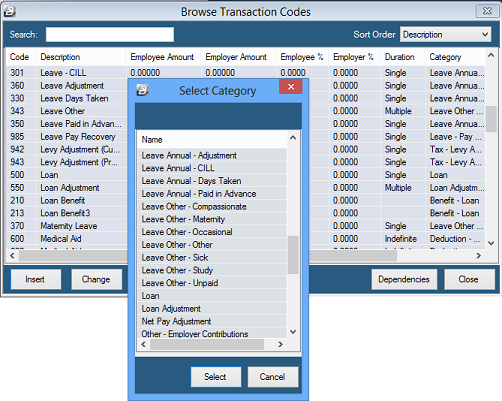
Leave Annual - CILL Transaction Code
Used to process Annual Leave days cashed in by an employee rather than taken during the year.
- Go to Edit, then Transaction Codes
- Press Insert to see the list of Transaction Code Categories
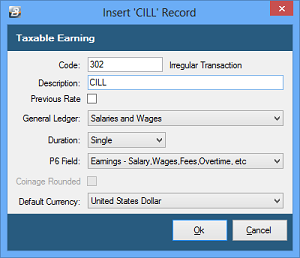
- Select Leave Annual - CILL
- Accept or change the default Transaction Code number, Description and General Ledger Code
- Leave can be set to pay at the Previous Rate — the last rate of pay applied to the individual
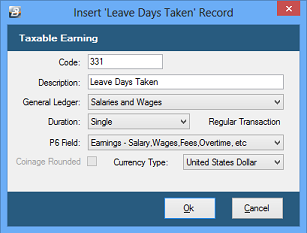
Leave Annual - Days Taken Transaction Code
Used to process Annual Leave days taken during the year.
- Go to Edit, then Transaction Codes
- Press Insert
- Select Leave Annual - Days Taken
- Accept or change the default Transaction Code number, Description and General Ledger Code
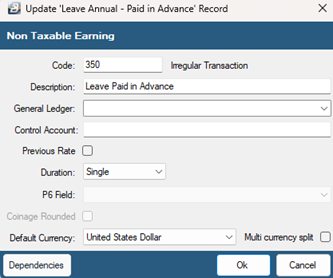
Leave Annual - Paid in Advance Transaction Code
- Go to Edit, then Transaction Codes
- Press Insert
- Select Leave Annual - Paid in Advance
- Accept or change the default Transaction Code number, Description and General Ledger Code
Processing Annual Leave
Leave can be processed through several methods; the example below uses Payslip Input.
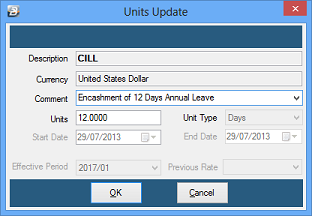
Processing CILL (Cash in Lieu of Leave)
- Go to Process, then Payslip Input
- Select the employee to have leave encashed
- Press Insert and select the CILL Transaction Code
- Enter a Comment and the number of Units (days) of leave being cashed in
Processing Days Taken
- Go to Process, then Payslip Input
- Select the employee
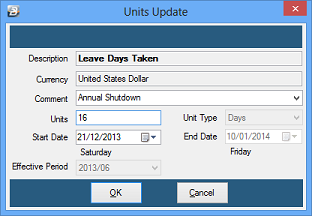
- Press Insert and select Leave Annual - Days Taken
- Enter a Comment, the number of Units (days) of leave being taken, and the Start Date
- The End Date is calculated automatically, taking into account whether leave is set up to count working days or calendar days (see Leave Setup → Calendar Days vs Working Days)
Processing Leave Paid in Advance
Use this where the employee is going on leave this period and will not be at work to receive pay during the current period and one or more subsequent periods.
| Scenario | How to Process |
|---|---|
| On leave this period — will be away on payday | Process as normal using Leave Annual - Days Taken. A special advance payment may be made, or the full net pay paid with a Net Pay Adjustment processed so the employee isn't paid twice in the main run. |
| On leave this period — away on payday but back at work in time for the next period's pay | Process as normal using Leave Annual - Days Taken. An advance payment may be made with a Net Pay Adjustment in the current period; no special processing is needed for the next period. |
| On leave this period — will be away on payday and for one or more full periods | Process using Leave Annual - Paid in Advance. The system calculates the net pay that would have been payable for each full period the employee is away, and pays the total in the current period. Each subsequent Period End automatically brings through standard Transaction Codes together with a deduction for the unrecovered portion of the Leave Paid in Advance total for each full period away. Only full periods away are included — the employee receives a full period's pay in the first period back at work, with no advance payment for leave days in a period where they're back at work. |
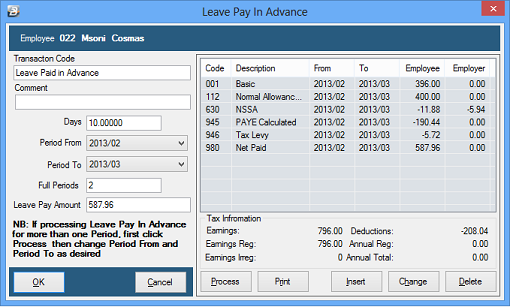
To process 'Leave Paid in Advance':
- Select the Leave Paid in Advance Transaction Code from Payslip Input
- Press Process
- Enter a Comment and the Period From and Period To
- The system automatically calculates the number of Days
- Any balance of days not being paid in advance must be processed separately as Leave Annual - Days Taken
Viewing the Annual Leave Balance
To see an individual's Annual Leave balance:
- Go to Edit, then Employee Master
- Select the employee
- Select the Balances tab
- Note the figure against Annual Leave
To see leave balances for one or more employees at once, run a report — see Leave Reports.
Was this page helpful?