Year-End Procedure
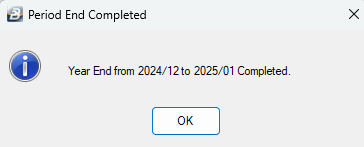
The Year-End procedure rolls the system over from the final period of the current tax year into the first period of the new tax year. To simplify this process, Belina Payroll uses a built-in wizard that automatically generates the next year's periods and sets up common public holidays.
Pre-Conditions Checklist
Before launching the wizard, verify that:
- All processing for the final period of the year is complete.
- All necessary reports have been printed and statutory exports prepared.
- A final Year-End backup has been captured and stored securely.
Year-End Procedure Steps
- Go to Utilities > Period End.
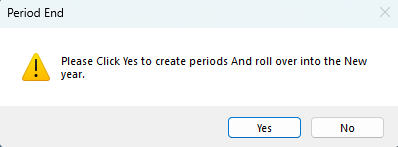
- On the pop-up prompt asking if you want to proceed with the Year-End procedure, select Yes.
- If you have not backed up yet, tick the Backup Payroll Now checkbox and complete the backup routine.
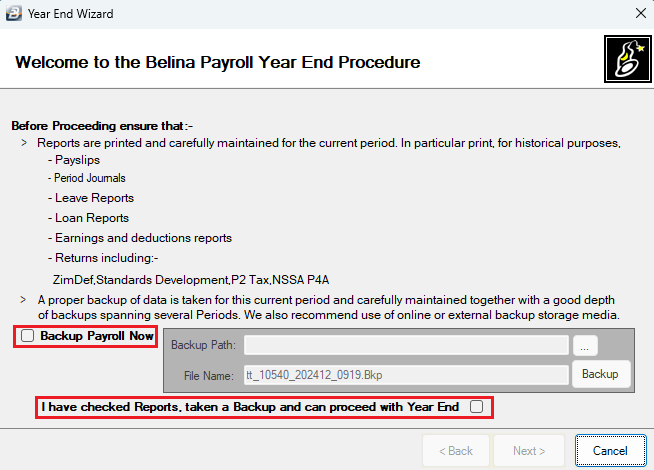
- Tick the confirmation checkbox: "I have checked reports, taken a Backup and can proceed with Year End".
- Click Next to continue.
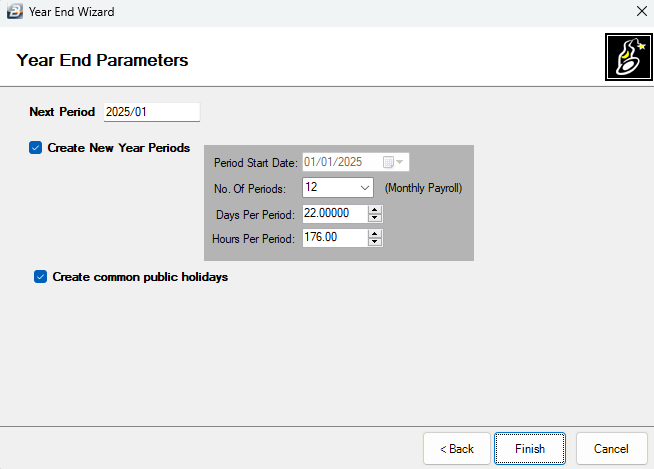
- Keep the pre-ticked checkboxes for "Create New Year Periods" and "Create common public holidays" enabled (you can adjust the period settings if required).
- Click Finish to complete the rollover and proceed to input the new tax tables.
Tax Tables Setup
Tax tables will automatically populate. If there are no tax tables picking up, it may mean that the Belina Payroll version you are running on does not yet have the tax tables for that year set up. Follow these steps to set them up.
To Insert the 2026 USD Tax Tables
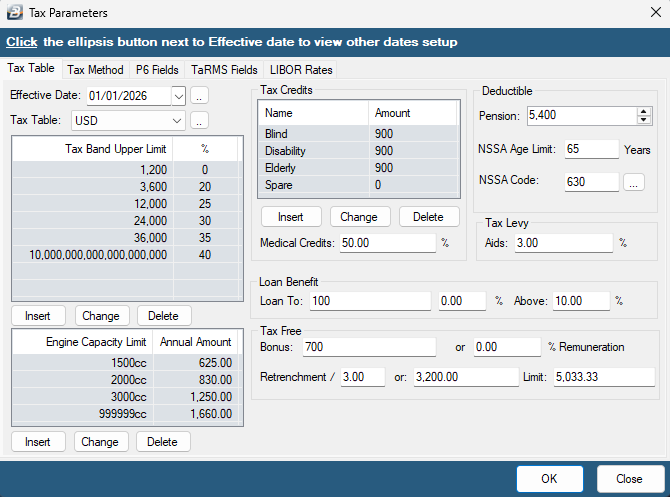
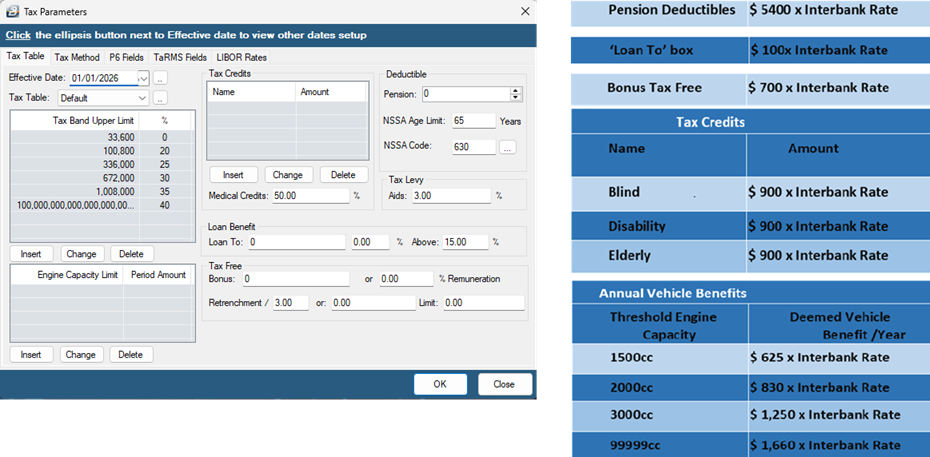
If your payroll is USD/multicurrency, proceed to enter the tax bands as configured for the current year. (If you close the tax table setup window before completing them, you can access it under Setup > Tax > Existing).
-
Note the following critical statutory parameters:The Elderly tax credit age lower limit is 55 years.Deductible Pension is 5,400.Medical Credits are 50%.Tax Levy Aids is 3%.
-
After you have finished entering the tax bands, click OK to view the payroll in the new year.
To Insert the 2026 ZWG Tax Tables
- If your payroll is solely in ZWG, enter the tax bands according to official guidelines. (You can also access this window via Setup > Tax > Existing if closed prematurely).
- Please note the communication from the Ministry of Finance, as provided for in Section 57 of the Finance Act, concerning the correct figures to use for vehicle benefits, loan benefits, bonus tax-free thresholds, deductible pension, and tax credits.
Converting Employees to the Applicable Tax Method
Before commencing your payroll processing for the new year, ensure that employees are assigned the correct tax method:
- FDS Average: The recommended tax method for full-time employees.
- PAYE / Non-FDS: Applicable to employees who are seasonal, casual, contract, or who join during the year.
To complete this update in bulk, follow these steps:
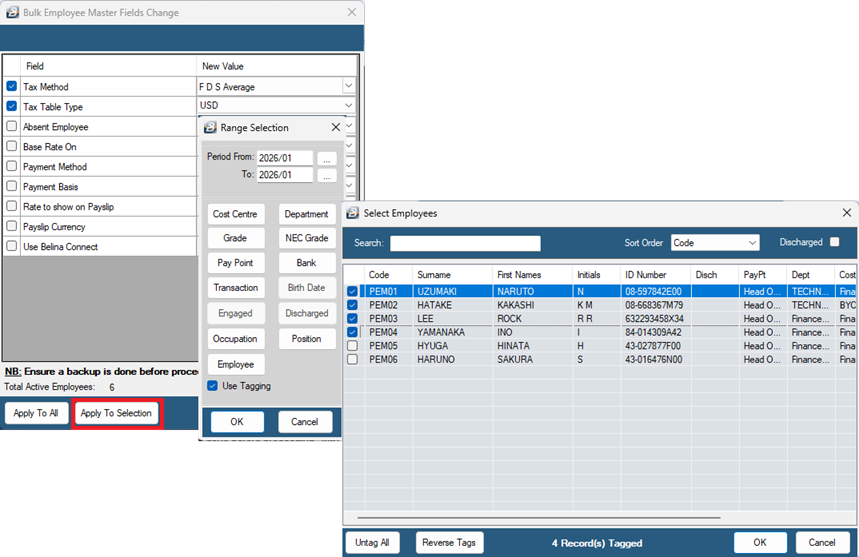
- Navigate to Data > Bulk Routines > Employee master file changes.
- Tick Tax Method and select FDS Average.
- Tick Tax Table Type and select USD.
- Select Apply To Selection, tick Use Tagging, and specify your criteria (e.g., by Employee).
- Tag the relevant employees who fall under the FDS Average tax method and click OK.
- Click OK again to proceed, and click Yes on the confirmation prompt to execute the bulk master file change.
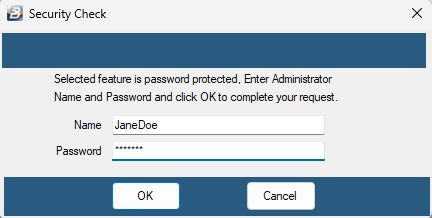
- Enter your Administrator Name and Password, then click OK to complete the update.
Repeat this entire process to change the tax method and tax table type for your PAYE / Non-FDS employees.
Was this page helpful?