Bulk Employee Bank Details Update
Use this bulk routine to efficiently change or delete specific banking details for a group of employees simultaneously.
- Go to the 'Data', 'Bulk Routines', then 'Employee Bank Details' menu options.
- The utility is split into two main tabs: the General Tab and the Account Numbers Tab.
General Tab
Use this tab to change or delete core payment and banking rules. Press either 'Change' or 'Delete' depending on your goal. (Note: There is an 'Apply' button next to each section of the screen, which allows changes to be focused strictly on that one aspect without overriding other fields).
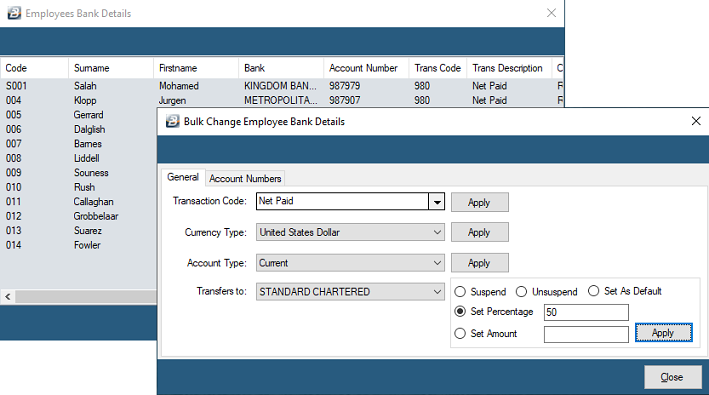
Available Settings to Update:
| Field | Description |
|---|---|
| Transaction Code | Change which Transaction Code triggers a transfer. This is normally the 'Net Paid' code, but you might change it for a specific range of employees (e.g., setting it to 'Advance' when paying an advance). |
| Currency Type | Change the currency type being paid to selected employee bank accounts. |
| Account Type | Change the Account Type being used to pay selected employees. |
| Transfers to | Used when employees are paid into multiple accounts. When multiple accounts are set up, a percentage of the Net Paid can be routed to one bank and the remainder to another (must total 100%). This structure should be maintained regardless of other changes made below. |
| Suspend | Suspend payments to a particular bank for a selected group of employees. This keeps the bank details on record for possible future use without releasing funds to it. |
| Unsuspend | Unsuspend payments to a particular bank that had previously been suspended. |
| Set as Default | Specify which bank account acts as the employee's default (main) bank account. |
| Set Percentage | Bulk enter the percentage of the Net Paid that should be sent to this specific bank account. |
| Set Amount | Bulk enter a fixed, set amount that should be sent to this specific bank account. |
Once you press 'OK' after applying your changes, a Range Selection screen will appear allowing you to select exactly which employees these updates should apply to.
Account Numbers Tab
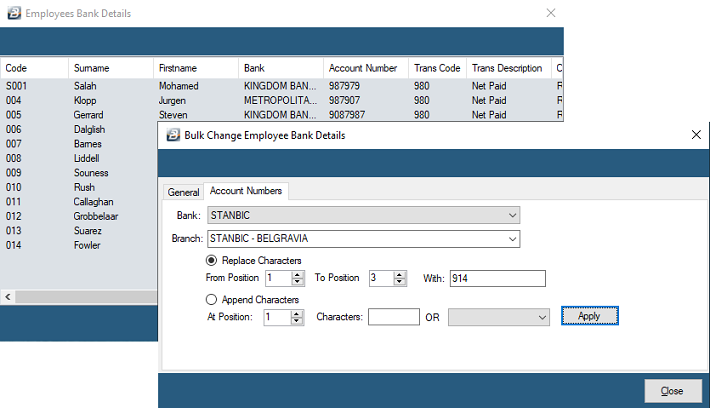
Use this tab to structurally modify the bank account numbers for a group of employees. This is rare but extremely useful if a specific bank restructures the layout of its clients' account numbers, saving you from manual entry.
To restructure account numbers:
- Go to the 'Data', 'Bulk Routines', then 'Employee Bank Details' menu options.
- Select the 'Account Numbers' tab.
- Use the dropdown menu to select the specific 'Bank' that is undergoing the restructure.
- Move the radio button to select either 'Replace Characters' or 'Append Characters'.
- Enter the exact position in the account string where the change is to be effected, and complete the other fields as necessary based on the bank's new structure.
- When complete, press 'Apply' and 'Close'.
- A Range Selection screen will appear. While you can select a specific range of employees, structural bank changes should typically be applied to all employees associated with that specific bank. The changes will automatically spill to each employee master record in the selected range.
Was this page helpful?