Navigation & Interface
Belina Payroll uses a standard Windows menu layout with a ribbon toolbar. Understanding the layout saves time when processing and reporting.
Main Menu Bar
The menu bar at the top of the screen provides access to all functions:

| Menu | What It Contains |
|---|---|
| File | Open, New, Backup, Close payroll |
| Edit | All reference data — employees, transaction codes, departments, banks, etc. |
| Process | Payroll processing — Payslip Input, Bulk Input, Batch Input, Calculation Routine |
| View | All reports |
| Setup | Global Defaults, Registration, Security |
| Utilities | Exports (EDI, EcoCash), Period End, Imports, Lock/Unlock |
| Data | Data maintenance and history |
| Help | Manual, Version information and SLAs signed |
Navigation Controls
Standard navigation buttons appear throughout the system:

| Button | Action |
|---|---|
| Insert | Add a new record |
| Edit (or double-click) | Modify the selected record |
| Delete | Remove the selected record |
| OK | Save and close |
| Cancel | Discard changes and close |
| Close | Close the screen |
Range Selection
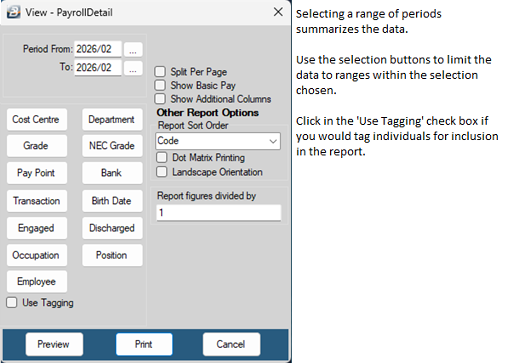
Many reports and processes ask you to specify a range of employees. The Range Selection screen lets you filter by:
- Employee number range
- Department
- Cost centre
- Pay point
Leave all fields blank to include all employees.
Tagging Employees
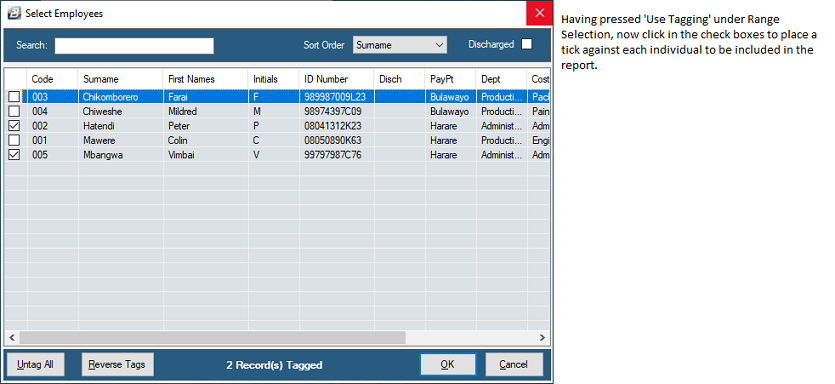
For processes that apply to selected employees only, use the tagging method:
- In the employee list, tick the checkbox next to each employee you want to include
- Click Select Tagged to proceed with only those employees
Keyboard Shortcuts
| Key | Action |
|---|---|
| F1 | Help |
| F5 | Refresh / Recalculate |
| Insert | Add new record |
| Delete | Delete selected record |
| Enter | Confirm / move to next field |
| Esc | Cancel |
| Tab | Move to next field |
Was this page helpful?